Multi tier Docker apps with Fig
I had a play with Fig whilst researching my InfoQ story on Docker’s acquisition of Orchard Labs.

Rather than just going through the quick start guide and firing up their example app I thought I’d try out my own three tier demo from when I last wrote about multi tier apps with Docker. The three docker run commands get placed into a Fig config file[1]:
todomvcdb:
 image: cpswan/todomvc.mysql
 expose:
 - "3306"
 volumes:
 - /data/mysql:/var/lib/mysql
todomvcapp:
 image: cpswan/todomvc.sinatra
 expose:
 - "4567"
 links:
 - todomvcdb:db
todomvcssl:
 image: cpswan/todomvc.ssl
 ports:
 - "443:443"
 links:
 - todomvcapp:app
It’s as simple as that[2]. The application is then brought up using[3]:
sudo fig up
Whilst at one level this is simply moving complexity from one place (docker run) to another (fig.yml) the result is more manageable and elegant. I look forward to seeing what happens to Fig as the Orchard team integrate into Docker.
Notes:
[1] Sadly WordPress doesn’t support YAML with it’s code tag.
[2] Though I did need to remove the underscore separators I’d previously had e.g. todomvc_app.
[3] The need for sudo isn’t pointed out in the Fig docs :(
Filed under: Docker | 2 Comments
Tags: Docker, Fig, Orchard Labs
This was a warm up for a presentation I’ll be doing at AppSec USA later in the year.
I got some good feedback on the night, but if you have more then please make a comment below.
Filed under: CohesiveFT, Docker, presentation, security | Leave a Comment
Tags: Chicago, DevOps, Docker, meetup, security
Amazon has launched new web services designed to simplify the building and operation of mobile applications using their cloud as a back end. Cognito provides an identity management platform and key/value store, and is complemented by Mobile Analytics. The AWS Mobile SDK has been updated to version 2.0 to provide integration with the new services, and there are samples in github for iOS and Android.
Filed under: cloud, identity, InfoQ news, mobile | Leave a Comment
Tags: amazon, analytics, android, aws, Cognito, identity, iOS, mobile
This post originally appeared on the CohesiveFT blog
Want to do more with your AWS Virtual Private Cloud (VPC)? We have 10 ways you can enhance cloud networking with our virtual appliance, VNS3.
First, a quick background on the product: VNS3 creates an overlay networking on top of AWS infrastructure. This allows you to control security, topology, addressing and protocols for your applications wherever they are.
Since its launch in 2008, VNS3 has secured over 100 Million virtual device hours in public, private, and hybrid clouds. VNS3 is software-only, and acts as 6 devices in 1:
- Router
- Switch
- VPN concentrator for IPsec and SSL
- Firewall
- Protocol re-distributor
- Scriptable network function virtualization
1. You control the cipher suites and keys
The AWS VPC default (and only) encryption algorithm choice for VPN connections is AES-128. AES-128 is a good, but what if your industry regulations or internal policies need AES-256, or the partner you’re connecting to insists on 3DES? Then there’s the question of how exactly pre shared keys (PSKs) are shared – are you really happy to share keys with a 3rd party service provider?
2. Connect across availability zones, regions, and into other clouds
Fault boundaries are there for a reason, and a resilient application should be spread across fault boundaries. The only good reason for VPC subnets being limited to a single availability zone (AZ) is simplicity for Amazon’s network engineers. VPC has provided VPC Peering but is limited in number of VPCs that can be peered, intra-region only, and security features. VNS3 subnets can span across AZs, regions or even into different clouds such as Azure, HP and Google Compute Engine.
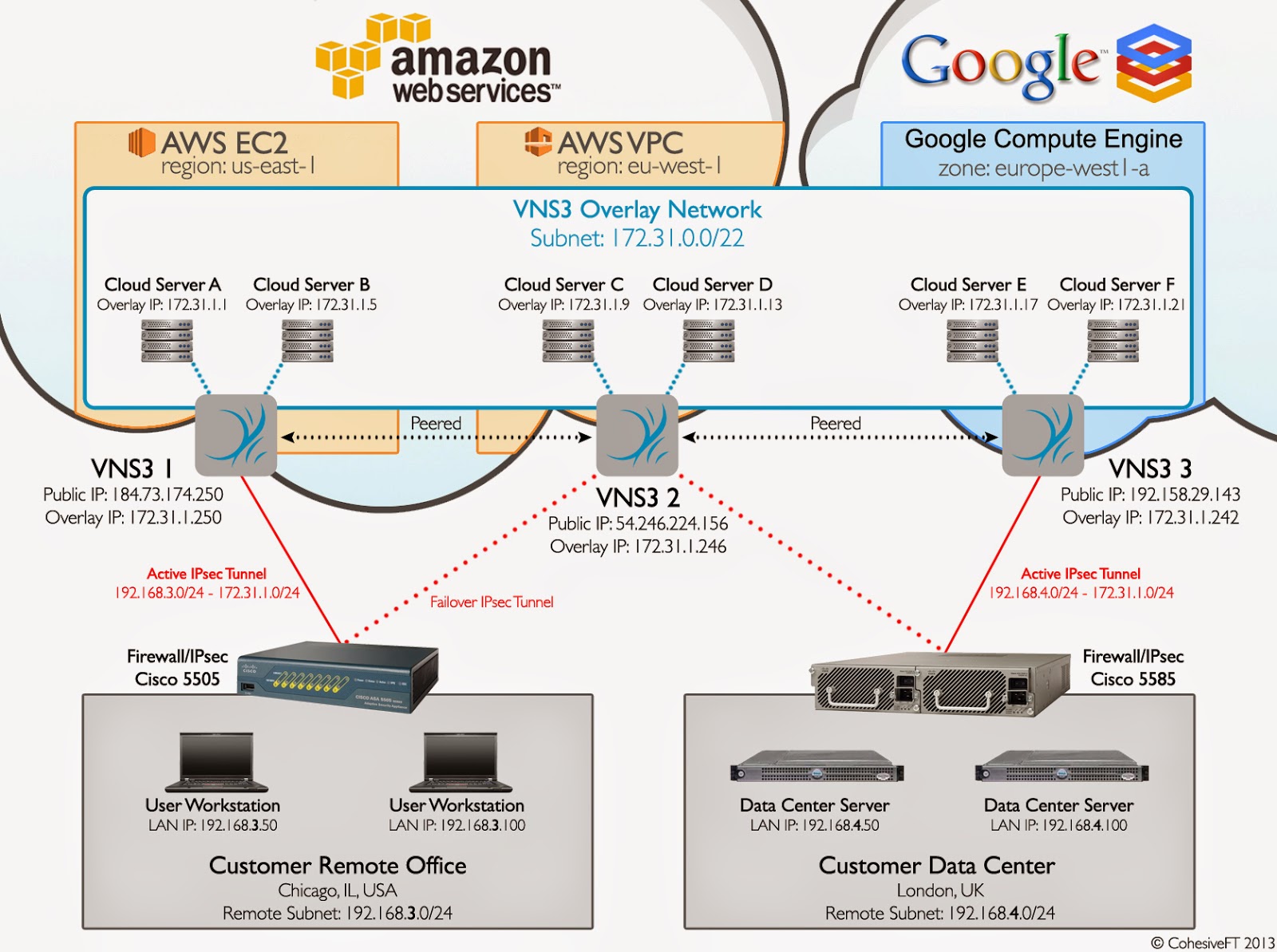
3. Pay only once for IPsec connectivity and NAT (not twice)
VNS3 providers IPsec and NAT capabilities in one virtual instance. With AWS VPC IPsec is one billable service, and the NAT AMI also runs up the EC2 bill.
4. Oh no – everybody picked the 10.0.0.0/16 default and now we can’t connect
As previously mentioned, VPC now has a peering feature to join networks together. That great but bad luck if you picked the default VPC subnet and so did the person you’re connecting to. Beware the default network. VNS3 can map network address ranges, so you can connect to all those partners who didn’t know better than to pick the default. This also applies to IPsec end points, so you can connect to multiple parties with the same IP ranges on their internal networks.
5. You want to connect your VPN gateway to more than one VPC
Once a public IP has been used for a remote endpoint for a VPC VPN connection that public IP can’t be used again in that region. Only one VPC VPN can connect to a specific endpoint’s public IP per region. Of course you could assign another IP at the gateway end, but that’s extra cost and hassle.
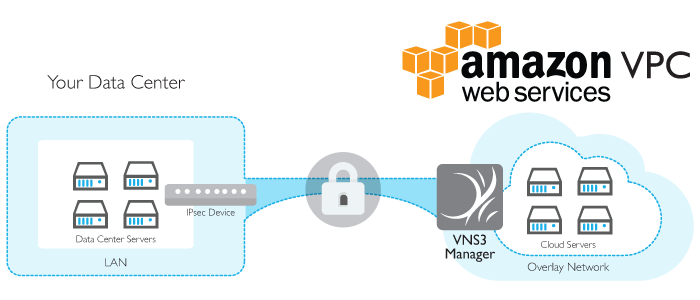
6. Your partners want to use IPsec over NAT-T
VPC hardware gateways only support native IPsec, whilst VNS3 can deal with either native IPsec or IPsec with network address translation traversal (NAT-T) – just not both at once[1].
7. Multicast (and other neglected protocols)
AWS is not alone in having no support for multicast – most other clouds don’t either[2] – it’s pretty hard to make a multi endpoint networking protocol work in a multi tenant environment. Not only does VNS3 enable multicast in the cloud by using overlay networking, you can also connect to enterprise multicast networks. We can also use generic routing encapsulation (GRE) to get other protocols out of the data centre and into the cloud.
8. Monitoring
VNS3 supports SNMP, and you can also dump traffic from network interfaces for additional logging and debugging.
9. Extensibility
Want to add SSL termination, a proxy server, some load balancing or content caching. You could use a bunch of extra VMs on your network edge, or you could avoid the additional cost, complexity and security concerns by using some Docker containers on VNS3.
10. Reliability
A major telco was finding that most of its cloud based customers had repeated connectivity problems, but a handful didn’t. It turned out that handful was running VNS3.
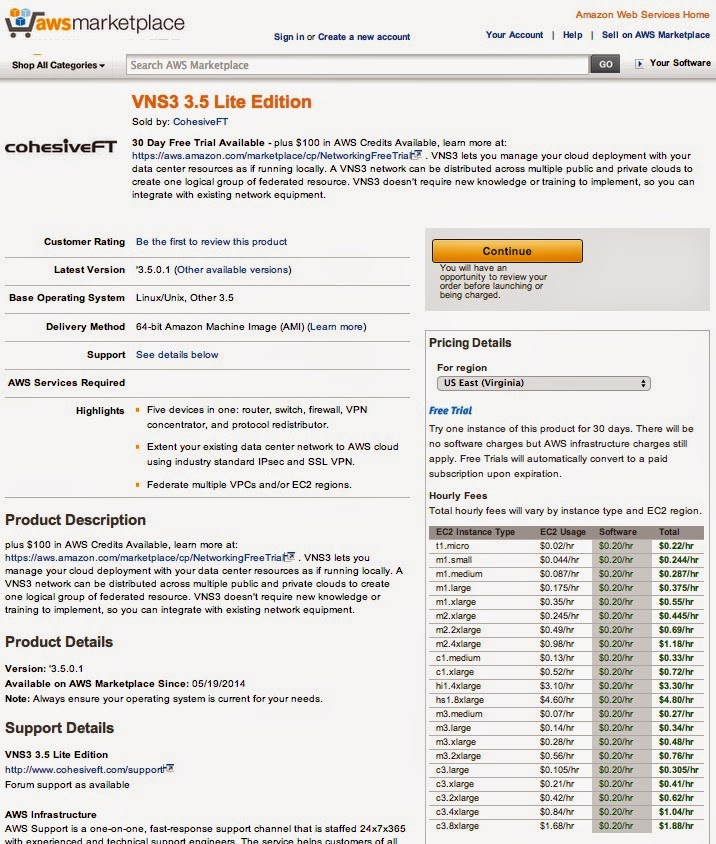
Try Before You Buy – VNS3 Lite Edition free trial in AWS
CohesiveFT is participating in the AWS Marketplace Network Infrastructure free trial campaign this July. The Lite Edition is available for a 1 month free trial for all AWS public cloud users. Customers who actively use VNS3 Lite Edition trial in AWS will receive $100 in AWS credits.
- Get started now in the AWS Marketplace.
- See our press release for more details and the full terms.
Notes
[1] It is possible to support native IPsec alongside NAT-T, and we have customers doing that, all that’s needed is a couple of VNS3 managers in the cloud.
[2] See Sam Mitchell’s “Ask a Cloud Networking Expert” post on why multicast is disabled in public cloud.
Filed under: cloud, CohesiveFT, networking | Leave a Comment
Tags: amazon, aws, ec2, VNS3, VPC
Amazon have introduced T2, a new class of low cost general purpose instances for EC2 intended for workloads that don’t drive consistently high CPU usage. At the low end t2.micro offers higher performance, more memory (1GiB) and a lower cost (1.3¢/hr) than the previous t1.micro. The T2 class also offers small and medium sizing with 2GiB and 4GiB RAM respectively. T2 instances all offer burstable performance, which is intended for peaky workloads.
Filed under: cloud, InfoQ news | Leave a Comment
Tags: amazon, aws, cloud, EBS, ec2, iaas, instances, T2
FPGA
TL;DR
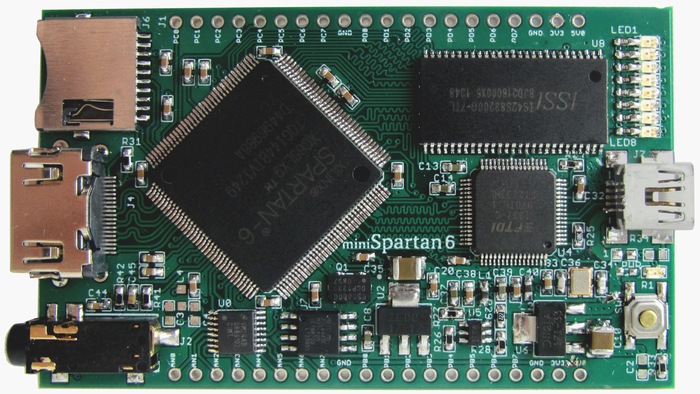
Field Programmable Gate Arrays (FPGAs) have been around for decades, but they’ve become a hot topic again. Intel recently announced Xeon chips with FPGAs added on, Microsoft are using FPGAs to speed up search on Bing, and there are Kickstarter projects such as miniSpartan6+ trying to bring FPGA the ease of use and mass appeal of the Arduino. Better accessibility is a good thing, as whilst the technology might be easy to get at, the skills to use it are thin on the ground. That could be a big deal as Moore’s law comes to an end and people start looking closer at optimised hardware for improved speed.
Background
I first came across FPGAs whilst doing my final year project in the compute lab of the Electronics department at the University of York. Neil Howard sat nearby, and was working on compiling C (or at least a subset of C) directly to hardware on FPGA[1]. Using Conway’s Game of Life as a benchmark he was seeing 1000x speed improvement on the FPGA versus his Next Workstation. That three orders of magnitude is still on the table today, as FPGAs have been able to take on Moore’s law improvements in fabrication technology.
My next encounter
FPGAs came up again when I was working on market risk management systems in financial services. I’d done the engineering work on a multi thousand node compute grid, which was a large and costly endeavour. If we could seize a 1000x performance boost (or even just 100x) then we could potentially downsize from thousands of nodes to a handful of nodes. The data centre savings were very tantalising.
I found a defence contractor with FPGA experience[2] that was looking to break into the banking sector. They very quickly knocked up a demo for Monte Carlo simulation of a Bermudan Option. It went about 400x faster than the reference C/C++ code. A slam dunk one might think.
Mind the skills gap
When the quants first saw the demo going 400x faster they were wowed. By the end of the demo it was clear that we weren’t going to be buying. The quant team had none of the skills needed to maintain FPGA code themselves, and were unwilling to outsource future development to a third party.
There was an element of ‘not invented here’ and other organisation politics in play, but this was also an example of local optimisation versus global optimisation. If we could switch off a thousand nodes in the data centre then that would save some $1m/yr. However if it cost us a more than a couple of quants to make that switch then that would cost >$1m/yr (quants don’t come cheap).
Programming FPGAs
Field programmable means something that can be modified away from the factory, and a gate array is just a grid of elementary logic gates (usually NANDs[3]). The programming is generally done using a hardware description language (HDL) such as Verilog or VHDL. HDLs are about as user friendly as assembly language, so they’re not a super productive environment.
Learning HDL
My electronics degree had a tiny bit of PIC programming in it[4], but I didn’t really learn HDL. Likewise my friends doing computer science didn’t get much lower level than C[5] (and many courses these days don’t ever go below Java). Enlightened schools might use a text like The Elements of Computing Systems (Building a Modern Computer from First Principles) aka Nand2Tetris, which uses a basic HDL for the hardware chapters; but I fear they are in the minority[6].
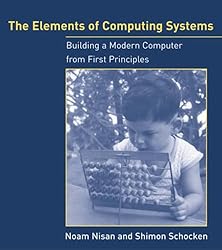
So since HDLs pretty much aren’t taught at schools then the only place people learn them is on the job – in roles where they’re designing hardware (whether it’s FPGA based or using application specific integrated circuits [ASICs]). The skills are out there, but very much concentrated in the hubs for semiconductor development such as the Far East, Silicon Valley and Cambridge.
The open source hardware community (such as London’s OSHUG) also represents a small puddle of FPGA/HDL skill. I was fortunate enough to recently attend a Chip Hack workshop with my son. It’s a lot of fun to go from blinking a few LEDs to running up Linux on an OpenRISC soft core that you just flashed in the space of a weekend.
The other speed issue
FPGAs are able to go very fast for certain dedicated operations, which is why specialist hardware is used for things like packet processing in networks. Programming FPGAs is also reasonably fast – even a relatively complex system like an OpenRISC soft core can be flashed in a matter of seconds. The problem is figuring out the translation from HDL to the array of gates, a process known as place and route. Deciding where to put components and how to wire them together is a very compute intensive and time consuming operation, which can take hours for a complex design. Worst of all even a trivial change in the HDL normally means starting from scratch to work out the new netlist.
Google’s Urz Hölzle alluded to this issue in a recent interview, explaining why he wouldn’t be following Microsoft in using FPGA for search.
Whilst FPGAs didn’t catch on for market risk at banks they’ve become a ubiquitous component of the ‘race to zero'[7] in high frequency trading. The teams managing those systems now have grids of overclocked servers to speed up getting new designs into production.
Hard or soft core?
Whilst Intel might be just recently strapping FPGAs into its high end x86 processors many FPGAs have had their own CPUs built in for some time. Hard cores, which are usually ARM (or PowerPC in older designs) provide an easy way to combine hardware and software based approaches. FPGAs can also be programmed to become CPUs by using a soft core design such as OpenRISC or OpenSPARC.
Conclusion
Programming hardware directly offers potentially massive speed gains over using software on generic CPUs, but there’s a trade off in developer productivity and FPGA skills are pretty thin on the ground. That might start to change as we see Moore’s law coming to an end and more incentive to put in the extra effort. There are also good materials out there for self study where people can pick up the skills. I also hope that FPGA becomes more accessible from a tools perspective, as there’s nothing better than a keen hobbyist community to drive forward what happens next in industry – just look at what the Arduino and Raspberry Pi have enabled.
Notes
[1] The use of field-programmable gate arrays for the hardware acceleration of design automation tasks seems to be the main paper that emerged from his research (pdf download).
[2] From building line speed network traffic analysis tools
[3] As every type of digital circuit can be made up from NANDs, and NANDs can be made with just a couple of transistors. The other universal option is NORs.
[4] If I recall correctly we used schematic tools rather than an HDL.
[5] My colleagues at York actually learned Ada rather than C, a peculiar anomaly of the time (the DoD Ada mandate was still alive) and place (York created one of the original Ada compilers, and the Computer Science department was chock full of Ada talent).
[6] It’s a shame, my generation – the 8bit generation, pretty much grew up learning computers and programming from first principles because the first machines we had were so basic. Subsequent generations have learned everything on top of vast layers of abstraction, often with little understanding of what’s happening underneath.
[7] Bank of England paper ‘The race to zero‘ (pdf)
Filed under: technology | 1 Comment
Tags: FPGA, HDL, Nand2tetris, programming, skills, speed, Verilog, VHDL
Home brew
TL;DR
I made a hoppy American style pale ale using a Festival Razorback IPA kit. It was easy, and tastes great.

Background
I like beer. I like beer a lot. Over the years my tastes have changed from the mass produced lagers of my youth, to the resurgent British real ale that’s been around for most of my adult life, and now American craft beer. It was probably a decade ago that I started visiting the US pretty frequently, and not long afterwards I discovered that American beer had moved on from Bud[1], Miller and Coors (Lite). Sam Adams was my first taste of the beer revolution, but it was Sierra Nevada that really made a mark on me.
Until last year I was pretty happy to leave American beer styles to my travels, but a couple of things conspired to change that. First and foremost I blame James Governor for introducing me to brews like The Kernel at his excellent Monkigras events; and then Ryan Koop got me going with Revolution Anti-Hero and SKA Modus Hoperandi in the bars of Chicago’s Loop. After returning home from an extended stint in Chicago last summer I found myself unable to appreciate an ordinary British pint. I had become addicted to hops.
Of course it’s possible to get hoppy IPAs and the like in the UK. Imports like Goose Island Green label are readily available, and there are plenty of domestic clones such as Brewdog Punk. The trouble is that they’re expensive – typically around £1.79 for a 330cl bottle. I mostly settled in to getting bottles of Oakham Citra from Waitrose – still £1.79 a bottle, but for a half litre. I’d also treat myself to bottles of Dark Star brews or some draft HopHead from my local boutique vintner.
The craft in craft beer
I’d met Elco Jacobs, the man behind Brew Pi, at Monkigras 2013, and we’d swapped notes on temperature control using Raspberry Pis. So I had some idea what would be involved. I’d also brewed some (terrible) ginger wine as a teenager. I figured that if I wanted to drink craft beer then I should get on with the craft. A quick chat with Jim Reavis at a Cloud Security Alliance event persuaded me to take the plunge.
Start easy
I decided to start out with a kit. My initial idea was to get a basic IPA kit, and then hop it up a bit, but then I found the Razorback kit and that seemed like a quick path to what I wanted. I bought the beer kit along with a comprehensive equipment starter kit[2] from Balliihoo.
The brew
After sterilising all the bits of equipment I was about to use it was pretty easy to get the kit going. I just dissolved the sugar pack and the pack of beer goop in hot water, put it into the brew bucket and added cold (filtered) water, stirred, added the yeast and sealed the lid.
The wait
Nothing happened.
For days my beer just sat there.
Not so much as a bubble from the air trap.
I thought my fermentation might be stuck.
Or maybe I’d killed the yeast by putting it in when the wort was too hot (even though I’d checked the thermometer on the side of the bucket).
And then finally after about a week it frothed up.
Dry hopping
After a couple of weeks I decided to take the plunge and add in the hops pack and test the gravity of my brew. It had gone from 1048 to 1012 – good progress.
More wait
Brewing needs patience. I left it alone for another couple of weeks, and it continued to show no external signs of anything happening.
Another gravity test showed 1005. First fermentation was finished.
Kegging
The auto syphon I’d seen recommended as an addition to the base equipment kit really came into its own here, and made the transfer to the keg very easy.
Yet more waiting
About a week for secondary fermentation to happen, and then another couple for conditioning and clearing.
At last
I have beer. It’s very nice straight from the keg. Nicer still if I decant some into a bottle and let it chill in the fridge. Properly awesome if I give it a quick fizz in the SodaStream before drinking[3]. It’s a little cloudy compared to commercial beers, but the important thing is that it tastes great.

My brother and I did a quick comparison against some HopHead last night, and we both actually prefer the floral notes on the home brew. My 40 pints might not last as long as I’d originally planned, so it’s a good job that I have another brew going on tonight.
ToDo
So far I haven’t turned my beer project into an electronics or Raspberry Pi project. That will come in time. I fully intend to make a brew fridge once I start to stray from just using a kit (and as the winter months necessitate some better temperature control).
Any tips welcome
I’m new to this, so please comment on what else I should be doing/trying.
Notes
[1] Back when I was in HMS London I used to be the ‘wardroom wine caterer’ (== booze buyer). For a NATO Standing Naval Force Atlantic deployment I went for a policy of buying local. The 50 cases of Labatts Ice I got in Halifax Nova Scotia went down very well, the 40 cases of Bud I got in San Juan not so much.
[2] I’ve still found no use for the funnels that came in the kit.
[3] Careful use of a SodaStream (I have a Genesis model) adds some extra fizz and hasn’t resulted in the mess that most forum posts warn about – like everything else with this brewing malarkey the main trick seems to be taking things slowly and carefully.
Filed under: beer | 10 Comments
Tags: APA, beer, brewing, craft, Festival, home brew, IPA, Razorback

Facebook have announced their own switch design, codenamed ‘Wedge’, saying that it’s already being tested in their production network. In many ways the switch is unremarkable; it uses the same Broadcom Trident II merchant silicon ASIC that most other high end ‘white box’ top of rack (TOR) switches use, and it uses Linux on a commodity compute platform as its operating system. The physical packaging and power systems fit in with the server designs that Facebook has previously donated to the Open Compute Project (OCP), making it almost the purest expression of networking equipment as a commodity.
Continue reading at The Stack
Filed under: networking, The Stack | Leave a Comment
Tags: ASIC, Facebook, OCP, open compute, osh, SDN, switch
InfoQ articles
I bumped into a friend and former colleague earlier in the week who reads this blog, but didn’t realise that I now write cloud stuff for InfoQ.

Please take a look – most of the recent stories are about Docker, but I also do my best to cover the most important cloud news in a given week. I also do video interviews with people at QCon conferences, and if you go far enough back some of my own presentations are there (though sadly not the one from the original QCon London).
I’ll try to figure out a way to bring InfoQ stuff into this activity stream.
Filed under: cloud, InfoQ news | Leave a Comment
Tags: cloud, InfoQ, news, QCon


 Chris Swan's Weblog