Raspberry Pi GPIO Joystick
After getting MAME going on my Raspberry Pi so that I could play old arcade games. I wanted to hook up a proper joystick. Back in the 80’s I had the excellent and ubiquitous Competition Pro 5000. As mine (foolishly) got sold with my Amiga stuff I got one on eBay, and it came in the original box:
 The first step was to get it hooked up to the RPi general purpose input output (GPIO). I used a breadboard with my homebrew Pi Cobbler at one end and a similar connector at the other hooked up to an old PC serial card cable that has the right (male) DB9 connector for the joystick plug (female). It was then just a matter of adding some pull up resistors (10K) and some patch cables:
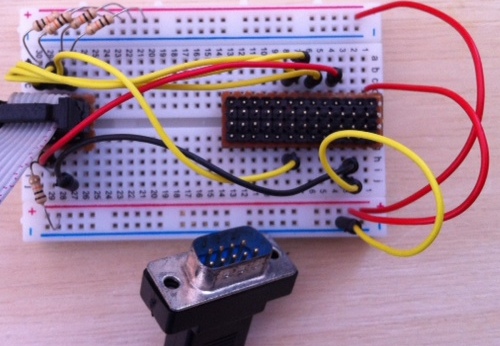
Since I was originally planning to use gpio-keys I used the joystick pinout to hook up to the RPi thus:
- Up -> 11 (GPIO 17)
- Down -> 13 (GPIO 22)
- Left -> 15 (GPIO 23)
- Right -> 16 (GPIO 24)
- n/c
- Fire -> 7 (GPIO 4)
- n/c
- GND
- n/c
Blind alley
Having already seen gpio-keys I thought I’d be using that, but when it came to the crunch I didn’t know where to start – I probably need a package of RPi kernel source. On reflection I probably really wanted gpio-mouse anyway.
After some digging around the Raspberry Pi Forums I found a comment about using Python to generate keystrokes. This got me headed in the direction of Python uinput, which is a module that can create keypresses.
sudo modprobe uinput
git clone https://github.com/tuomasjjrasanen/python-uinput
cd python-uinput
sudo python setup.py install --prefix=/usr/local
Smelling victory I knocked together some code that turns GPIO into keypresses. Sadly it seems that AdvMAME derives it’s input in such a way that completely ignores uinput for keyboard. Back to the drawing board.
The right(ish) approach
Digging around the examples for Python-uinput I found one for joystick, so I had a go at creating a GPIO connected variant:
""" rpi-gpio-jstk.py by Chris Swan 9 Aug 2012
GPIO Joystick driver for Raspberry Pi for use with 80s 5 switch joysticks
based on python-uinput/examples/joystick.py by tuomasjjrasanen
https://github.com/tuomasjjrasanen/python-uinput/blob/master/examples/joystick.py
requires uinput kernel module (sudo modprobe uinput)
requires python-uinput (git clone https://github.com/tuomasjjrasanen/python-uinput)
requires (from http://pypi.python.org/pypi/RPi.GPIO/0.3.1a)
for detailed usage see https://blog.thestateofme.com/2012/08/10/raspberry-pi-gpio-joystick/
"""
import uinput
import time
import RPi.GPIO as GPIO

GPIO.setmode(GPIO.BOARD)
# Up, Down, left, right, fire
GPIO.setup(11, GPIO.IN)
GPIO.setup(13, GPIO.IN)
GPIO.setup(15, GPIO.IN)
GPIO.setup(16, GPIO.IN)
GPIO.setup(7, GPIO.IN)

events = (uinput.BTN_JOYSTICK, uinput.ABS_X + (0, 255, 0, 0), uinput.ABS_Y + (0, 255, 0, 0))

device = uinput.Device(events)

# Bools to keep track of movement
fire = False
up = False
down = False
left = False
right = False

# Center joystick
# syn=False to emit an "atomic" (128, 128) event.
device.emit(uinput.ABS_X, 128, syn=False)
device.emit(uinput.ABS_Y, 128)

while True:
 if (not fire) and (not GPIO.input(7)): # Fire button pressed
 fire = True
 device.emit(uinput.BTN_JOYSTICK, 1)
 if fire and GPIO.input(7): # Fire button released
 fire = False
 device.emit(uinput.BTN_JOYSTICK, 0)
 if (not up) and (not GPIO.input(11)): # Up button pressed
 up = True
 device.emit(uinput.ABS_Y, 0) # Zero Y
 if up and GPIO.input(11): # Up button released
 up = False
 device.emit(uinput.ABS_Y, 128) # Center Y
 if (not down) and (not GPIO.input(13)): # Down button pressed
 down = True
 device.emit(uinput.ABS_Y, 255) # Max Y
 if down and GPIO.input(13): # Down button released
 down = False
 device.emit(uinput.ABS_Y, 128) # Center Y
 if (not left) and (not GPIO.input(15)): # Left button pressed
 left = True
 device.emit(uinput.ABS_X, 0) # Zero X
 if left and GPIO.input(15): # Left button released
 left = False
 device.emit(uinput.ABS_X, 128) # Center X
 if (not right) and (not GPIO.input(16)):# Right button pressed
 right = True
 device.emit(uinput.ABS_X, 255) # Max X
 if right and GPIO.input(16): # Right button released
 right = False
 device.emit(uinput.ABS_X, 128) # Center X
 time.sleep(.02) # Poll every 20ms (otherwise CPU load gets too high)
With that saved as rpi-gpio-jstk.py it was a simple case of running:
sudo python rpi-gpio-jstk.py &
I tested using advj, and it showed input. When I fired up AdvMAME the joystick worked – horray – time for some gaming:)
Conclusion
I now have a working classic joystick for my classic games, and it seems to perform fine. I’m not entirely happy with the Python based approach, particularly as it uses polling, but I’ve seen nastier hacks. I’d still like to get a proper kernel module working, more so if it can use interrupts rather polling. I should probably also investigate using internal pullups so that I can simplify the wiring for when I make a more permanent (dual?) joystick adaptor.
Updates
19 Aug 2012 – I changed the code (available on GitHub) to use internal pullups. Since this now means that there are no components involved (just wires between the joystick and GPIO) I’m going to see if I can make an adaptor that just uses one side of the GPIO header (as all I need is GND and 5 inputs). This will involve changing some pins. More to follow when my DB9 PCB connectors arrive from China.
Filed under: code, howto, Raspberry Pi | 37 Comments
Tags: advj, advmame, breadboard, cobbler, GPIO, joystick, MAME, python, Raspberry Pi, Raspi, RPi, uinput
Raspberry Pi Arcade
I grew up in the dawn of arcade games, and living at the coast meant that I had access to a couple of decent arcades where I could play all the classics as they came out – Space Invaders, Galaxian, Defender, Moon Cresta, Galaga, Phoenix, Star Wars, Tron and Tempest all stick in my mind, but Mr Do! and Bubble Bobble were my all time favourites.

The Multiple Arcade Machine Emulator (MAME) has been around for years now, and has found its way into all sorts of places (a version was even available in the Apple Appstore just before last Christmas just in time for me to get an iCade). Of course the Raspberry Pi is quite capable of running many of the older games, which should include all the true classics. In this post I’m going to run through how I got MAME going on my RPi.
Dependencies
I’m using Raspbian now, and though it comes with sound working, it lacks some of the libraries that MAME needs to output sound. We also need a specific version of the compiler so:
sudo apt-get install alsa-tools libasound2-dev gcc-4.7
export CC=gcc-4.7
export GCC=g++-4.7
AdvanceMAME
There are quite a few flavours of MAME out there, and the main development has concentrated on WinTel. MAME4All has found its way onto ARM based smartphones and tablets, but it seems that AdvanceMAME is the way to go on the RPi. First download and extract the archive[1]:
wget http://is.gd/AdvMAME
mv AdvMAME advancemame-0.106.1.tar.gz
tar -xvf advancemame-0.106.1.tar.gz
Then run the configuration and build process:
cd advancemame-0.106.1
./configure
make
The build takes hours – so probably best to kick it off at a time when you’re not going to be using your RPi for a while – this isn’t a grab a cuppa situation. Once everything’s done it can be installed:
sudo make install
You should now be able to run advmame. On first time it will create default configuration files. You’ll need to edit one of these to get things working properly with the RPi display. Open up ~/.advance/advmame.rc and add a line:
device_video_clock 5 -50 / 15.62 / 50; 5 - 50 / 15.73 / 60
For HDMI or for an NTSC TV:
device_video_clock 5 - 50 / 15.73 / 60
ROMs
This is where things get tricky. MAME provides a software version of the hardware that used to be in the game cabinet, but the software is covered by copyright, and most of the classics will be locked away for many years yet. Some olders games have found their way into the public domain, but many others are still locked away. There are of course plenty of sites on the Internet designed to help those with broken arcade machines give their intellectual property a new lease of life (and if you happen to come across some old arcade machine ROMs then they can be dumped out using an Arduino).
Once you have some ROMs (in a zip file) they can be placed in /usr/local/share/advance/rom/ or ~/.advance/rom/ and you can then run the game with advmame romname.
Other emulators
MAME isn’t the only show in town, there are loads of other gaming platforms out there, and many have emulators. I’d recommend a visit to Shea Silverman’s blog – the work he’s done on MAME helped me a lot in getting my own setup working, and he hosts ready built binaries for MAME and other emulators.
Todo
I quite fancy getting my games going with a proper joystick, interfaced via GPIO. There’s already some code to do this, but it seems that I let go of my trusty (and highly modded) Competition Pro 5000 joystick when I sold my Amiga – time for some eBay shopping.
Update
Some ROMs are available for download from the official MAME site.
Notes
[1] I’ve used a URL shortener here to keep stuff from spilling off the end of the screen. The original link is http://downloads.sourceforge.net/project/advancemame/advancemame/0.106.1/advancemame-0.106.1.tar.gz
Filed under: howto, Raspberry Pi | 19 Comments
Tags: advancemame, advmame, arcade, elsa, game, gcc, MAME, Raspberry Pi, raspbian, Raspi, RPi, sound
Raspberry Pi Alarm
I set $son0 a summer holiday challenge of building an alarm system that would send an email (and it seems that I’m not alone). I was pleased to see that the latest edition (#4) of Magpi has an alarm project so we set about building it together.
The hardware came together pretty nicely, but the software proved to be more challenging, so I’ll use this post to describe the hurdles encountered, and how they were dealt with.
Python GPIO
The code provided is Python [1] (it would be nice if the article called that out) and uses the GPIO library. Sadly this (and its key dependency) aren’t part of Raspbian. The following commands got things going:
sudo apt-get install python-dev
wget http://is.gd/RPiGPIO
mv RPiGPIO RPi.GPIO-0.3.1a.tar.gz
tar -xvf RPi.GPIO-0.3.1a.tar.gz
cd RPi.GPIO-0.3.1a
sudo python setup.py install
I’ve used a shortened URL above (and then had to rename the resulting file) so that everything fits on the page properly. The original URL is http://pypi.python.org/packages/source/R/RPi.GPIO/RPi.GPIO-0.3.1a.tar.gz [2]
The code
To save a bunch of typing I simply cut and pasted the code from the PDF page of MagPi into a text editor. This created a few issues:
- All of the indentation got stripped out, so I manually put it back in using Tab, and then replaced my tabs with 6 spaces.
- The single quotes and double quotes had been turned into illegal characters (probably by an overenthusiastic typesetter) so I needed to search/replace to get them straightened out.
With the code looking like what was on the page it was time to run. Unfortunately I hit a few more issues:
- The Python runtime complained about some of the indentation
- The latest GPIO insists on an explicit setmode()
Here’s the code I ended up with, which seems to pretty much map the functional description in the article:
import RPi.GPIO as GPIO
import time
GPIO.setmode(GPIO.BOARD)
GPIO.setup (11, GPIO.IN)
GPIO.setup (12, GPIO.OUT)
GPIO.setup (13, GPIO.IN)
GPIO.setup (15, GPIO.OUT)

while True:
      if not GPIO.input(11):
            if GPIO.input(13):
                  print "The door is open - please close the door and try again."
                  GPIO.output(15, True)
                  time.sleep(.3)
                  GPIO.output(15, False)
                  flash = 3
                  while flash > 0:
                        GPIO.output(12, True)
                        time.sleep(.3)
                        GPIO.output(12, False)
                        time.sleep(.3)
                        flash -= 1
            else:
                  active = 'true'
                  activated = 'false'
                  time.sleep(.1)
                  if GPIO.input(11):
                        print "Alarm Armed"
                        while active == 'true':
                              GPIO.output(12,False)
                              if not GPIO.input(11):
                                    time.sleep(.1)
                                    if GPIO.input(11):
                                          print "Alarm Disarmed"
                                          time.sleep(.1)
                                          active = 'false'
                              if GPIO.input(13):
                                    print "**** Alarm !!! ****"
                                    activated = 'true'
                                    GPIO.output(15, True)
                                    time.sleep(10)
                                    GPIO.output(15, False)
                                    while activated == 'true':
                                          if not GPIO.input(11):
                                                time.sleep(.1)
                                                if GPIO.input(11):
                                                      print "Alarm Disarmed"
                                                      time.sleep(.1)
                                                      active = 'false'
                                                      activated = 'false'
                                          else:
                                                GPIO.output(12, True)
                                                time.sleep(.3)
                                                GPIO.output(12, False)
                                                time.sleep(.3)
      else:
            GPIO.output(12,True)
I saved it as ‘alarm.py’ then ran it (as root in order to access GPIO) using:
sudo python alarm.py
Conclusion
We now have a working alarm system on the RPi, but it doesn’t send emails when tripped – yet.
Notes
[1] Python 2.x to be precise, as the print commands aren’t function calls, which is one of the more obvious differences between Python 2.x and 3.x
Filed under: code, howto, Raspberry Pi | 3 Comments
Tags: alarm, GPIO, howto, python, Raspberry Pi, Raspi, RPi
Recovering my Azure VM
A few weeks back I wrote a howto that utilised the 90 day free trial on Azure to build OpenELEC for the Raspberry Pi. Days later my account was disabled as I’d exhausted the (rather low) limit for I/O within the trial. Since I’d only used 5-6p of extra stuff I went through the process of allowing my account to be billed for use over the trial. This didn’t bring back my VM (and there was nothing obvious that I could do to resurrect it). I wondered if things might change if I left it until the second month of the free trial, but nothing did.
Getting the name back
I noticed pretty much straight away that I couldn’t create new VMs with the DNS name that I’d used – openelec.cloudapp.net. Eventually I tracked down the hold on it to the Cloud Services tab. I’d not used this as part of the configuration process, but that’s where I found my orphan name. I had to delete the name, and then create a new VM that used it, as there appears to be no way to attach a VM to a name sat in the Cloud Services list.
Reattaching to old storage
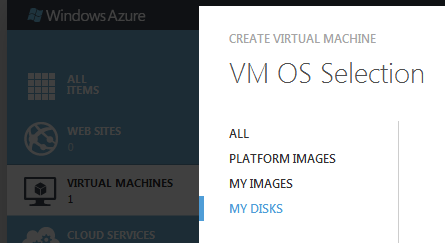
The disks for my VM were left alone when the VM itself was deleted, so it was fairly easy to get things back (once I figured out how). All that’s required is to choose existing disks when creating a VM using the gallery method:
Conclusion
When I lay out the steps above it looks trivial, but it took me a lot of poking around the Azure management portal (and a bit of trial and error creating and recreating machines) to figure things out. The extra good news is that Microsoft have upped the I/O limit in the free trial from 1m to (a far more reasonable) 50m, so hopefully I won’t subject myself to economic denial of service (EDoS) again by running OpenELEC builds.
Filed under: cloud, howto | Leave a Comment
Tags: Azure, disk, DNS, Microsoft, MS, name, reattach, recover, recovery, VM
MS improve Azure free trial
I was very frustrated last month when my trial subscription of Azure IaaS was disabled after a couple of days use (and I’m working on a post detailing how I later resurrected my server). The cause of that issue was that the free trial only bundled 1m IOPS (storage transactions).
I’ve been watching my use of the service this month, and waiting for the meter to start ticking up, but that hasn’t happened yet as the IOPS limit is now a much more generous and realistic 50x larger:
 It’s great to see that Microsoft have made the trial more useful.
Filed under: cloud, did_do_better | Leave a Comment
Tags: Azure, Microsoft, MS
I fly to Zurich a few times a year, and often fly with Swiss, so I’ve been a member of their Miles & More rewards programme (which is run by Lufthansa) for some time. To help keep hold of my miles (and even top them up a little) I got the connected credit card from MBNA. Each month I get an email that looks like this:
 I foolishly thought that because I had the card my miles were safe (and perhaps didn’t notice or pay attention to the red expiry warning when it came along). Of course the marketing message:

is different from the smallprint:

So over the past month my mileage balance has been pretty much vaporised:
 So it looks like I have little incentive to do business with Swiss or MBNA any more (and I miss out on that ski trip in the Swiss alps that I thought I might one day use those miles on).
It’s just a shame it wasn’t made clear to me that my credit card wasn’t shielding me from expiry. I’d have given the miles to charity or something rather than have them just expire.
Filed under: could_do_better, grumble, travel | 3 Comments
Tags: expired, expiry, Lufthansa, MBNA, mileage, Miles and More, rewards, Swiss
I’ve had my original Samsung Galaxy Tab for over a year now, and it’s a great device. I particularly like that it has 3G (and that it came with a SIM that I can use relatively inexpensively in the US[1]). It shipped with Android 2.2 (Froyo), and after rooting and restocking I’ve pretty much left it alone as the Android 2.3 (Gingerbread) version of CyanogenMod that I run on my ZTE Blade never officially supported the Tab. I noticed the other day though that the Tab is now supported for the Android 4.0 (Ice Cream Sandwich) version of CyanogenMod (CM9).
Installation
Unfortunately the upgrade instructions assume that you’re already on Android 2.3, which I wasn’t, and after copying over the suggested kernel I found that I had an unbootable device:( I fixed this up by running through the restocking and upgrade process for Overcome, and then used the Overcome recovery to install CM9 and Google Apps.

In use
It’s like having a new tablet – faster, better looking and more robust. The only drawback seems to be that battery life might not be what it used to be (or maybe I’m just using it even more now). It would also be nice if I could get rid of the soft keys (since the Tab has hard keys), but that’s a minor annoyance. The newer Swype is awesome too.
Conclusion
Better tablets have come along since the original Galaxy Tab, but it’s still a great piece of hardware, and CM9 gives it a fresh lease of life. My fingers are crossed that they’ll port Android 4.1 (JellyBean) over to it too.
[1] In the UK I have a Three SIM that came with a MiFi and gives me 15GB data/month (always more than enough). When I travel to the US I use AT&T’s tablet plan to get 3GB for $30 that lasts a month.
Filed under: technology | Leave a Comment
Tags: 4.0, android, boot, bricked, CM9, CyanogenMod, Galaxy, Ice Cream Sandwich, ICS, Overcome, recovery, Samsung, tab, unbootable, upgrade
Drones
Barely a week goes by these days without me seeing something about a cool home built drone project on sites like Hack a Day, and a couple of weeks ago the Open Source Hardware Users Group (OSHUG) had a meeting dedicated to drones. I really liked the idea of using Kinect as a controller for an ARDrone:
Sadly the chaps from OpenRelief weren’t able to make the meeting, but they sent along an excellent video of what they’re up to that more than made up for things (and means that you can see as much as I did of the great work they’re doing):
I can see loads of potential for these things as kids and hacker toys, and the possibilities with mesh networks and the Internet of Things is enormous. Unfortunately there’s a down side… Drones have been an effective tool in the ‘war on terror’ for some time, but the tables could turn as the forces of consumerisation turns them from the asymmetric weapon of 1st world governments into the asymmetric weapon of anybody. The first time I read of this concept was in Scott Adam’s ‘The Religion War‘, but I’m told that there are earlier SF references such as David’s Sling by Mark Stiegler. The overreactions by law enforcement have already started, which prompted me to talk about the topic at the recent London CloudCamp ‘Independence Day Special’:
I concluded by saying that we need to start the debate on policy now – before something that causes a knee jerk reaction happens.
Filed under: politics, technology | 1 Comment
Tags: ARDrone, drone, drones, kinect, OpenRelief, OSHUG, quadcopter
In part 1 I went through setting up an SSH tunnel, and waking up machines on the home network. In this part I’ll run through how to use various protocols and clients to connect to machines on the home network.
SSH tunnels on PuTTY
SSH lets you tunnel many other protocols through it (using a technique known as port forwarding), and PuTTY has a sub menu for configuring this:
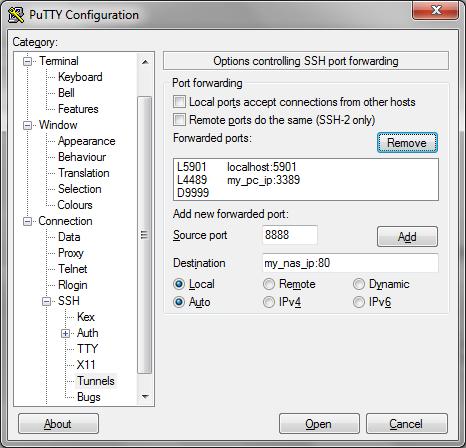
Here I’m illustrating tunnels for VNC (to the RPi itself), RDP (to a Windows PC), HTTP (for a NAS or anything else with a web console) and SOCKS (to route web traffic through your home network).
VNC
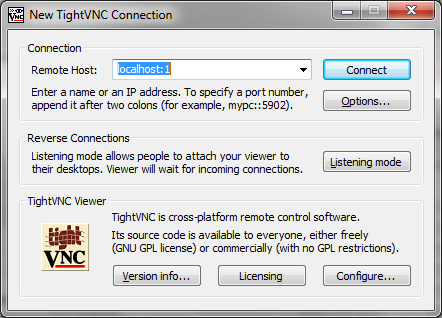
I touched upon VNC in my guide to using the Raspberry Pi on the iPad, and there’s a more general guide on Designspark. Assuming that you have things working on your home network all that you need to change when using an SSH tunnel is to connect to localhost rather than the IP or name of the RPi itself (NB if you’re running VNC on the machine you’re connecting from then you’ll have to use an alternate port):
RDP
The Remote Desktop Protocol (RDP) was originally used for multi user computing from Windows Servers. Later it was made available for remote admin of servers, and since Windows XP it’s been available on desktops. It’s switched off by default, so the first thing needed is to enable it on the machine you want to connect to remotely (Right click on [My] Computer in the start menu and select properties then Remote Settings):
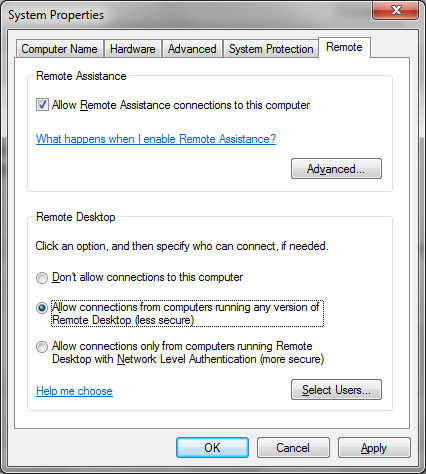
Since you might have RDP enabled on the machine you’re connecting from I’ve chosen to use a different port (4489) rather than the default (3389). To connect run ‘mstsc’:
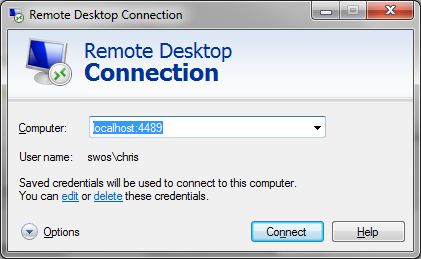
Web interfaces
Many devices on the home network can be accessed through a browser, and if you set up a tunnel as illustrated above all that’s needed is to browse to localhost:port (though be careful with proxy configuration if you’re using a proxy or if you tunnel web traffic as described below).
Web traffic
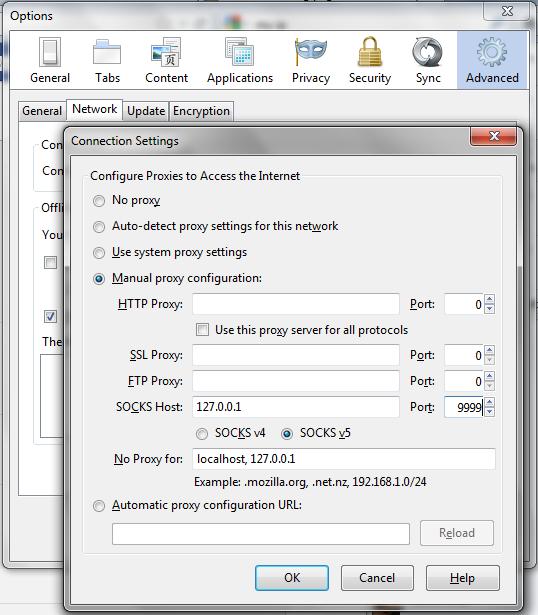
There are times when you might want to appear to the Internet as coming from your home network rather than whatever network you’re on. You can tunnel your web traffic through the Raspberry Pi by using a Dynamic port (also illustrated above) as a SOCKS proxy e.g. with FireFox:
Anything else
Pretty much any protocol can be sent down an SSH tunnel, including SSH itself (so you can run tunnels through tunnels if you like). The only limits are your patience and ingenuity.
Before leaving
It’s one thing to wake machines up remotely, but it’s not always obvious how to send them back to sleep/hibernate – the right options don’t appear in the start menu. The rick is to click on the menu bar (usually at the bottom of the screen) then hit Alt-F4, which will then bring up a menu that includes sleep and hibernate (if they’re enabled).
Conclusion
In this two parter I’ve covered setting up SSH to your Raspberry Pi at home then using it to wake up other machines on the network. I’ve then run through how to tunnel various remote access protocols through SSH so that you can take control of machines remotely.
Filed under: howto, Raspberry Pi, security | Leave a Comment
Tags: howto, http, Putty, Raspberry Pi, Raspi, RDP, remote access, router, RPi, SOCKS, SSH, tunnel, VNC, vpn, wakeonlan
In this post I’m going to cover setting up a network tunnel and waking up other computers on the home network.
Why use a Raspberry Pi?
A tunnel needs two ends, so at home this means leaving at least one machine switched on – keeping the electricity meter turning. One of the great things about the Raspberry Pi is its low power consumption. At 3.5W it will cost less than £3 to leave it on all year.
Overview
There are numerous types of virtual private network (VPN) using a variety of protocols such as IPSEC, L2TP, PPTP and SSL. Most home broadband routers support one flavour of these, but can be very fiddly to configure (both on the router and the client). This howto will cover use of secure shell (SSH). When two computers are connected using SSH it’s possible to tunnel a variety of other connections through that tunnel, allowing all sorts of things to be accomplished.
SSH server config
I’ll assume you’re using the Debian “squeeze” build, though these instructions should be similar for other distributions.
The OpenSSH server is included in the build, but not set to start by default. To fix that:
sudo mv /boot/boot_enable_ssh.rc /boot/boot.rc
Then reboot.
Keys please
It’s possible to use SSH with a username and password, but this approach is susceptible to password sniffing and brute force attacks[1]. It’s more secure to use SSH keys. I’m going to use the PuTTY client later, so I’ll use its companion key generation tool PuTTYgen. When you launch the tool it will ask you to wiggle the mouse to generate randomness, and once that’s done it’s time to name the keys:
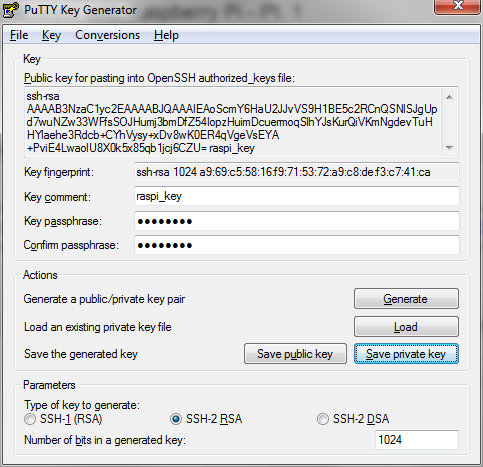
Save the private key somewhere safe. You’ll need it later on the machine that you want to connect from remotely.
The public key needs to go into ~/.ssh/authorized_keys on the Raspberry Pi:
cd ~
mkdir .ssh
chmod 700 .ssh
echo [paste public key text here] >> .ssh/authorized_keys
chmod 600 .ssh/authorized_keys
Port forwarding – home router
To get to your RPi remotely requires a network port to be forwarded from the home router to the Pi. Details of configuring this vary from one router type to another. The illustrations that follow are for a Netgear DG834. With this particular router the first step is to configure a service:
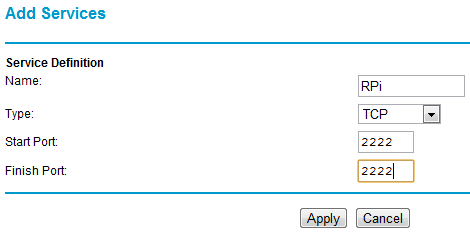
I’ve used port 2222 (SSH usually runs on port 22, but I’m using something different as its less likely to be found by the multitude of bots out there prodding our ports). Any port between 1024 and 65535 should be OK – pick something that’s easy for you to remember. The next step with my router is to configure the firewall to use the service:
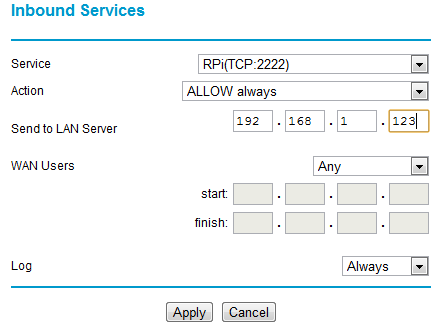
What this is doing is forwarding all incoming traffic on port 2222 to the IP address of the RPi (example here is 192.168.1.123).
Once the forwarding is set up add the port into the SSH daemon config on the RPi and restart SSH:
sudo sh -c "echo 'Port 2222' >> /etc/ssh/sshd_config"
sudo service ssh restart
Connecting remotely
All the pieces are in place now for you to connect remotely. The easiest way to try this will be with a machine connected to a MiFi or smartphone with hotspot mode (or use a friendly neighbour’s WiFi) – if there is troubleshooting to be done then you don’t wanting to be running backwards and forwards to your friendly local coffee shop (unless the coffee is REALLY good).
First configure PuTTY (or the SSH client you’re using) to use the private key you made earlier:
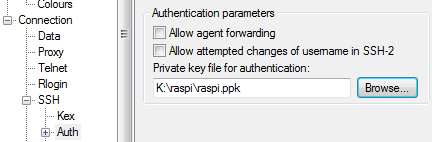
Next configure a session with the right IP address (google for ‘my ip’ when at home) and port, then save it for reuse later:
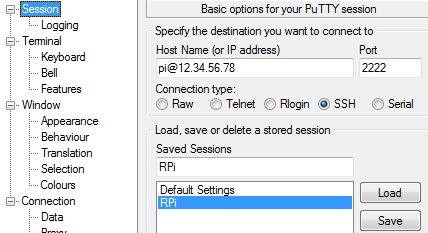
All being well you can now connect.
Waking up another machine
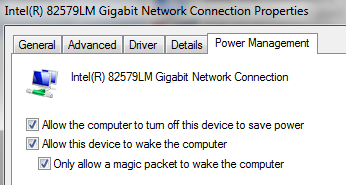
The Debian squeeze build for the wakeonlan tool, but for it to work you need to have the machine configured to wake up and know its hardware (MAC) address. Wake on LAN is configured in the control panel for network adaptors in the Configure panel for a given adaptor’s properties:
The MAC address can be found using ‘ipconfig /all‘ from the command line, or in the status panel for a live network connection.
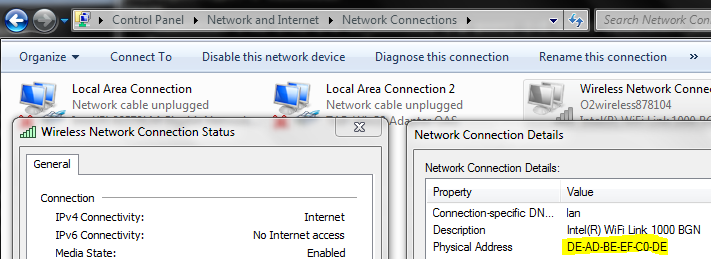
I could now wake up the machine illustrated above using this command from the RPi:
wakeonlan DEADBEEFC0DE
It’s hard to remember MAC addresses, so it’s probably best to put that line into a little wake_machine.sh script that can be run in the future.
Conclusion
The part has covered setting up SSH and waking up a machine remotely. In the next part I’ll go through how to configure SSH tunnels to access machines remotely (including the Raspberry Pi desktop) and web services on your home network.
Filed under: howto, Raspberry Pi, security | 9 Comments
Tags: howto, Putty, Raspberry Pi, Raspi, remote access, router, RPi, SSH, tunnel, vpn, wakeonlan


 Chris Swan's Weblog