A few weeks ago I attended a summit on advanced persistent threats (APTs)[1] run by on of the major security vendors. So that people could speak freely there it used Chatham House Rules, so sadly I can’t attribute the piece of insight that I’m going to share here.
About five or six years ago I wrote a security monitoring baseline, in which I started out with a statement along the lines of:
All security controls should be monitored, and such monitoring should be aggregated and analysed so that appropriate action can be taken.
The lead point here is that if you have a security control that isn’t properly monitored then at best it will give you a forensic record to be analysed after something so bad has happened that it’s obvious. Most likely that control is useless. If the control got put there to satisfy an auditor then a) they’re too easily satisfied and b) they’ll be back later when they realise the rror of their ways, sooner if something bad happens.
Since then it feels like the practice of security monitoring has matured. Most sufficiently large organisations now have security operations centres (SOCs) that employ some sort of security information/event management tool(s). In many cases organisations have discovered that running a SOC on their own isn’t a good use of highly specialised resource, and have engaged some sort of managed security service provider (MSSP) to do the heavy lifting for them.
Getting back to APTs – the whole point is that they’re different. This type of attacker isn’t generically after anything of value – they want something specific, and they want to take it from you. A different discipline is needed to identify and deal with such attackers, and this is where the eyeball analogy comes in – for the eyeballs on security monitoring we need both rods and cones:
- Rods – this is the picture you get from a traditional SOC. Monochrome, but works in low light. You can probably outsource much of this to an MSSP. Whoever does this will be reacting to a near real time environment.
- Cones – these add the colour. You may need to shine a light into the nether regions of your network to discern what’s going on. You need people that understand the business context of what an attacker is going after – the self awareness of knowing where the crown jewels are secured. Those people will have to actively search for the low and slow threats – matching the patience and technical subtlety of the attacker

[1] I actually prefer Josh Corman’s label of Adaptive Persistent Adversaries, but Schneier is right that we need a label to rally around, and APT seems to be the one that’s stuck.
Filed under: security | 1 Comment
Tags: APT, cones, eye, eyeball, monitoring, MSSP, rods, security, SEM, SIEM, sim, SOC
If I’d had a dummy in my mouth then I’d have definitely spat it when I read this:
 The article makes out the NYSE is pitching OpenMAMA directly against AMQP. Luckily it’s sensationalist twaddle, and the author obviously doesn’t appreciate the difference between an API, which is what OpenMAMA is, and a wire protocol, which is what AMQP is.
Whilst the tech press might like to stir up a fight, I personally look forward to seeing OpenMAMA and AMQP working together (just as JMS and AMQP do). Yes, I’m sure that NYSE will continue to push their proprietary messaging wire protocol – the one that they got when they bought Wombat; but that’s all part of the technology industry’s rich tapestry.
I’d also note that MAMA isn’t new, it seems that it was first released around six years ago. Props to NYSE for opening it up though, I’m really liking how the Open-* world is well, opening more every day.
Filed under: technology | 1 Comment
Tags: AMQP, API, MAMA, NYSE, open, OpenMAMA, press, wire protocol
One weekend, four upgrades
I found myself upgrading a bunch of stuff over the last weekend, which gave me cause to reflect on what was good, and what was not so good.
Android

First up was my ZTE Blade, which I’ve had running Cyanogen Mod. I wasn’t super impressed with version 7.0. There were few things that it did better than the modified Froyo build I’d previously had, and a few things didn’t work – like the FM Radio. Version 7.1 promised to fix that. The FAQ told me to use ROM Manager to do the upgrade, so I did. The whole process took place over the air, and after waiting for everything to download and install my phone was just better – all my apps and data were still there.
Ubuntu
Next was Ubuntu. I downloaded the server build of 11.10 (using BitTorrent as usual), but I already had a VM that I’d built with Alpha 3. A simple ‘apt-get dist-upgrade’ was all that was needed.
iOS5
This is where it got messy. I’d waited a few days until the load came off Apple’s infrastructure, having read the tweets about all the issues folk were having. It seemed like the main problem was simply getting the upgrade – how wrong I was about that.
First there was the obligatory iTunes update before I could get started, and the OS restart that went along with that – inconvenient, but not the end of the world.
I depend on my iPhone more than my iPad, so the iPad went first. Things did not go well. The upgrade process hung and/or failed in inexplicable ways at a number of stages. In the end I lost all of my videos (in the AVPlayer HD app) and all of my music (settings just seemed to disappear from iTunes), a bunch of extraneous apps from my iPhone also got installed. Luckily the rest of my data/settings seemed to survive, but it was a messy experience. I chose not to use iCloud.
The subsequent iPhone upgrade went a little better, but was also turbulent experience. Why is it that Apple needs to effectively backup and restore all my apps and data, and wipe the machine in between, rather than just patch up the OS in place? Clearly lots of lessons to be learned here from the OSS community.
Kindle
I upgraded my Kindle (from 3.1 to 3.3) whilst sorting out the iOS mess. It was a rawer experience than the Android or Linux updates, but very simple – download the new firmware, copy it over, invoke the update.
Conclusion
The Android upgrade experience was super impressive – everything that’s been promised with iCloud (but that we will wait for the next iOS update for to see if it’s for real). The Cyanogen Mod guys are really showing the world how it should be done – Google (and the handset makers) should have baked this in from the start, but it’s good to see a project bridging the gap. I was also impressed by Ubuntu – as I’ve become too accustomed to having to start afresh whenever I’ve used an alpha or beta version. Upgrading the Kindle was painless, but I’ve not really noticed anything new or improved. My iPhone doesn’t seem any better either, but it was a fight getting it there. Thankfully I do notice the better Safari on the iOS5 iPad, but it’s hard to say that it was worth the grief.
Filed under: could_do_better, did_do_better, grumble, technology | 1 Comment
Tags: 11.10, android, cyanogen, Cyanogen Mod, distribution, iOS, iOS5, iPad, iphone, kindle, Linux, upgrade, ZTE Blade
I run a bunch of Linux (mostly Ubuntu) VMs on my main machine at home, which happens to be a laptop. I use VirtualBox, but what I have to say here is probably applicable to most host based virtualisation environments.
My requirements are pretty simple:
- The VMs need to be able to access the Internet via whatever connection the laptop has.
- Internet access should continue to work if I switch between wired and wireless connections (e.g. if I undock the laptop and take it into the lounge).
- I need to be able to access the VMs over SSH using PuTTY.
- Not attached – obviously
- NAT – provides Internet access, but doesn’t give an IP that I can SSH to
- Bridged – makes me choose between wired or wireless
- Internal network – doesn’t do any of the things I want (at least not without much extra work/plumbing)
- Host only – doesn’t give me Internet access
- Generic driver – don’t even go there
- NAT – appears as eth0 – provides Internet access whether I’m using wired or wireless
- Host only – appears as eth1 – provides an IP that I can connect to using PuTTY
# Host only interface
auto eth1
iface eth1 inet dhcp
Filed under: howto, technology | 2 Comments
Tags: bridged, eth0, eth1, host only, howto, internal, Linux, NAT, network, networking, Putty, SSH, Ubuntu, VirtualBox, virtualisation, virtualization
Hardware hacking
I missed the start of PubSub Huddle on Friday due to the catastrophic failure of the local railway system. Luckily I can now catch up using the podcasts.
Once I got there I spotted Andy Piper tinkering with the Arduino kit he had been using to demo some stuff with MQTT. I was inspired.
I don’t have an Arduino kit myself yet, but I did some time ago buy some TI LaunchPads, which are a total bargain at $4.30 each. I’d had a brief play with one set when visiting a friend in the US who had kindly acted as the posting address for me, but I’d not yet created any project.
The boards come with the installed chip preconfigured with a temperature sensing application much like the one Andy was showing me, but I wanted to cut some of my own code. TI provide a bunch of sample apps, and some video tutorials, so it wasn’t long before I had some LEDs blinking.

My next challenge was to make something that would interest the kids. Blinking LEDs took me to morse code (starting with the obligatory S-O-S), which then took me to flashing the kids names in morse.
It was pretty trivial to get the microcontrollers working on breadboard, with juice from a 3V button cell and a resistor from VCC to RST to get things going. Then… soldering time – moving the components from the breadboard to some stripboard to make something a little more durable.
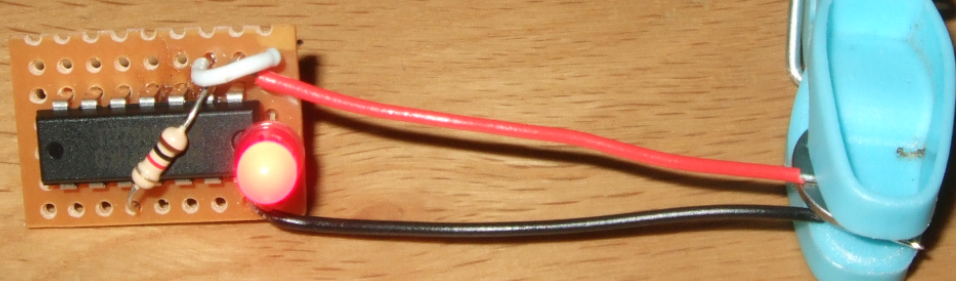
I tidied the code up this afternoon and put it on GitHub.
I might try hacking a robot next (this project looks fun), and an Arduino kit looks certain for this year’s Xmas list.
Filed under: technology | 5 Comments
Tags: arduino, launchpad, microcontroller, morse, msp430, ti
NoSQL as a governance arbitrage
I got into a conversation earlier in the week with a techie friend about the merits of SSDs, which we both use these days for our main machines. It look a odd left turn when he said:
Funny part for me is that I truly believe the SSD revolution will result in a swing back to more traditional storage tech like RDBs.If you could get 100k+ IOPS for good old postgres, would you use something else? ;)
NoSQL in the enterprise is sometimes about performance envelope, but in most cases I think it’s actually about escaping from the ‘cult of the DBA’ (and their friends the ‘priesthood of storage’). Most enterprise have a Dev:Ops barrier with the OR mapper on one side and the RDB on the other, so if people want to get with the DevOps groove they have to go some flavour of NoSQL – basic governance arbitrage.

Possibly, but I think people underestimate the tech behind the top class RDB engines, and making them go faster is sometimes a better solution then switching.. What the SSDs are doing is lowering, dramatically so, the price to increase the performance of said RDBs…
Filed under: technology | 2 Comments
Tags: dba, enterprise, governance, nosql, rdb, rdbms, ssd
I first drew this chart back around 2004 for my friend Alexis Richardson. At the time I referred to it in the context of a proprietary research methodology, but I don’t want trademark lawyers chasing me – hence the thesaurised title for this post.
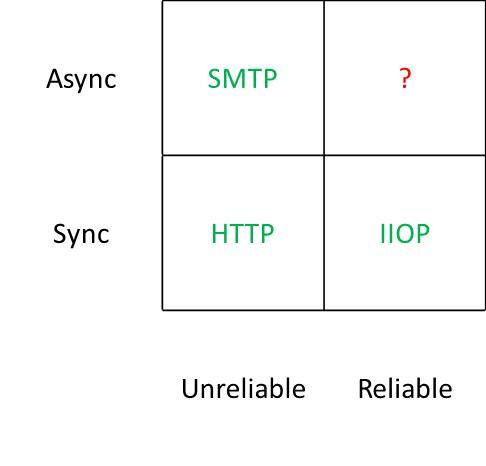 The point was very simple – we had standards based protocols for everything except the most useful case – asynchronous and reliable. There were of course protocols that occupied that corner, but they were proprietary – fine if you’re doing something within an organisation and willing to pay for it, but not so good if you’re trying to get services to work across organisational boundaries.
At the time many people were trying to bend HTTP out of shape so that it could be asynchronous and reliable with efforts like WS-RM, but I felt that what the world really needed was a simple standards based protocol for message oriented middleware (MOM).
Of course my prayers were answered not soon after, with the announcement by my friend John Davies at the Web Services on Wall Street conference[1] of the impending release of AMQP, and Alexis went on to found the hugely popular and successful RabbitMQ. The brave new world was going to look like this:
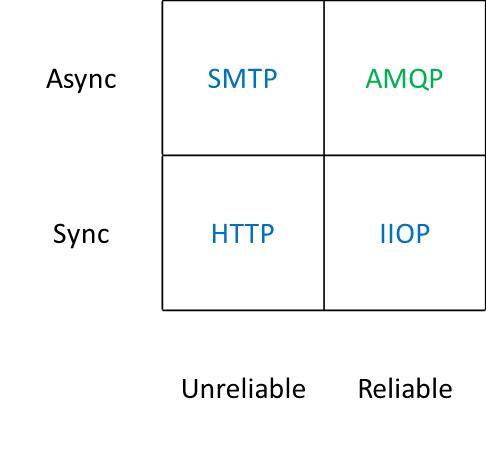 So why am I writing about this 7 years after first scribbling on a whiteboard? Well… it seems that some people still don’t get the joke. I found myself drawing the same chart again just this week whilst in the midst of a discussion with a SaaS provider on notification mechanisms. The unpleasant surprise was that people found it useful and informative (rather than obvious and patronising).
I’m going along to PubSub Huddle later this week, where I’m sure I’ll find loads of people doing cool stuff with AMQP. I just hope that I don’t have to wait too much longer for this all to become mainstream. For some time I’ve shared the vision of John O’Hara, and others in the working group, of AMQP becoming the ubiquitous interconnect[2]. Hopefully the time for that vision to become reality is upon us now that AMQP 1.0 is out the door.
[1] I recall that John didn’t have approval to talk in public about what was at the time time an internal project, but he went ahead anyway.
[2] John did a great piece in ACM ‘s Queue magazine on this (warning PDF and some scrolling required).
Filed under: architecture, software, technology | 6 Comments
Tags: AMQP, architecture, middleware, MOM, protocol, RabbitMQ, saas, SOA, web services
Review – EVGA G210 Graphics Card
After getting my 27″ monitor I needed a graphics card with Dual Link DVI that could do 2560×1440. I didn’t want to spend a load, and I wanted something without a fan (and associated noise) – the EVGA G210 was the cheapest I could find – £23.05 from Scan.co.uk (with free delivery courtesy of the AVForums offer).
 Installation
Pulling the old card and plugging in the new one was the usual PCI-E faff, but not too traumatic. When Windows 7 started up again it treated it as a ‘Standard VGA’ rather than going straight to Windows Update for new drivers, which I had to kick off manually. Pulling down and installing the drivers took an age – it’s a huge package, doubtless stuffed with cruft that I’ll never need or want. Once installed I was able to turn the resolution right up and enjoy my screen at its best.
Performance
I was replacing an old ATi Radeon X800, which was fairly mid range at the time I bought it (and ran cool enough to be passively cooled – at least after adding an enormous after-market heat sink). I was therefore expecting a substantial jump in performance given over 5 years of GPU evolution, and thought that even a low end card would smash my old one. My expectations were however ruined – whilst 3D performance (measured using Windows Experience Index) had picked up nicely (3.3 -> 5.9) the Desktop Aero performance has cratered (5.1 -> 2.9). If I’d bothered to look at more detailed specs perhaps I’d have picked up on pathetic memory bandwidth (and if I’d cared enough to splash a bit more money then maybe an AMD 6450 might have been more in order).
Conclusion
In normal use I haven’t noticed the drop in 2D performance, so maybe it doesn’t really matter that much. I do however get a pin sharp and huge desktop, which was the whole point, so overall I’m happy with it. Maybe I should have spent the extra £10 or so on the AMD card, but it’s not something I’m going to lose any sleep over.
PS I think I was right about the old X800 card not doing DVI digital output during startup. The new G210 certainly does let me see what’s going on every step of the way.
Filed under: review, technology | Leave a Comment
Tags: 210, EVGA, G210, GeForce, NVidia, review, WEI
After some hassles getting it, the X121e has been in the household for a few days now – so it’s time for first impressions review.
Design and build
The machine looks and feels more like an IdeaPad than the ThinkPad’s I’m used to. This is no surprise given the price. The chassis seems pretty robust, but the screen feels more flimsy, and doesn’t have a latch. It’s also lacking any visual indicators for hard disk activity, network etc.

One of the first things I did after unpacking was pop in another DIMM to take the memory up to 4GB. This was simplicity itself, as rather than having lots of separate covers on the base there’s just one giant one that gives access to RAM, HDD and the micro PCI-e slots for WiFi and 3G. This machine is seriously easy to upgrade.
I ordered the larger capacity 6 cell battery, and had to check the part number when it arrived as it seemed smaller and lighter than I expected. It doesn’t protrude at all from the regular dimensions of the case – so I can see how the 3 cell battery would make any sense at all. Claimed life is 9hrs, and I’ve not done any testing, but I’d expect 5hrs under normal use.
The screen is noticeably larger and higher resolution than a netbook screen, and fine to work with straight on. It’s matt, which I personally prefer, and whilst the viewing angle isn’t great that probably doesn’t matter for most laptop use cases.
The keyboard is a chiclet affair – something I’ve come to expect of a ThinkPad Edge. It is however rather good, and easy to type fast on. Like any proper ThinkPad it has a trackpoint, which is great. The trackpad isn’t too shabby either – though its textured finish might be a bit abrasive if used for a long time. The whole front edge of the trackpad can be pressed in for left and right mouse buttons.
Performance
Subjective performance is very good. I’m guessing that a 2nd generation Core i3 beats a 1st generation Core i7. The X121e has managed to clock up the best Windows Experience Index in the house (at 4.9). This is mostly down to the HD3000 integrated graphics turning in a decent performance (the earlier HD Graphics in my X201 definitely lets things down compared to the other components).
I had a go at hooking it up to my 27″ screen via HDMI to see if it could manage the full resolution of 2560×1440. Sadly all it could manage is 1920×1080 (1080p).
Software
I got the basic model with Windows 7 Home Premium (64bit). After configuring Windows it launched an installer for Office 2010 (and I’m guessing some other pre installed stuff). This was easy to exit, and the other pre installed stuff that I’d rather ignore has kept out of the way.
Overall
The X121e delivers the performance of last year’s high end machine at little more than a netbook price, which makes it quite a bargain. I’m glad that Lenovo managed to get me one in the end.
If you’re looking for more then there’s a thread at the OverClockers forum that includes some more detailed benchmarks and discussion of SSD upgrades amongst other things.
Filed under: review, technology | 11 Comments
Tags: lenovo, review, x121e
Review – Dell U2711 Monitor
I’ve lusted after a 30″ monitor for a while now, and got to use one some time ago (an Apple Cinema display) . The price of those beasts is headed in the right direction, but still – ouch.

27″ seems to be a different matter. A few weeks ago my brother was being disparaging about my ancient dual 17″ LCD setup, and remarked that he’d kitted out the office for Boss Alien with Hazro 27″ screens that had come in at less than £400 a pop. He said they were great apart from the lack of a height adjustable stand.
I took a look at the Hazros, but the stand was going to be an issue, and so was the fact that they only had a single Dual Link DVI input. I wanted something with a range of inputs for the machines in my home office, and here the Dell U2711 fitted the bill perfectly. The only trouble was that it was still expensive (around £650).
Then I saw that Overclockers were doing the Dell with a reduced warranty for £499 for pre-orders. I was tempted. Then they sent me a 5% off voucher. I was more tempted. Then they did a one day only special at £479.99 inc delivery (and my voucher was still valid) – I caved.
I expect the price of 27″ IPS screens will now plummet to something like £250. If that happens I will try not to care, as the U2711 is absolutely gorgeous – a real pleasure to use.
Text is about the same size as it was on my old dual screen setup, but there’s simply more acreage, and more flexibility to use it. I like the way that Windows 7 can snap stuff into the left or right half of the screen – so I can have things similarly arranged to when they where maximised on each of my dual screens. There are however times when you just want to go large with something – and not have a couple of bezels in the way is a game changer.
As with all complex tech there are some niggles. My ThinkPad Ultrabase can drive it quite happily at the full resolution of 2560×1440 using the included Displayport cable – so that’s my main machine sorted. Sadly there’s only one Displayport input, so I’ll need a DP-DL-DVI converter if I want to hook up my work laptop, which means another £30 on eBay. And the ancient X800 card in my workstation doesn’t have dual link support, so I will need a new card for that, which will likely be another £25 (for a low end passively cooled nVidia).
I shouldn’t however let my cabling concerns detract from the pleasure of using this thing – at least it’s capable of being hooked up to 5 PCs at once.
Update 1 – 1 Sep – I noticed that my desktop machine, connected via DVI, wasn’t showing anything during POST. The monitor would go into power saving mode until the Windows login screen was showing. I hooked it up via the VGA port (using a DVI-VGA adaptor) and all was well. I think this may be down to the graphics card outputting analogue signal for the lower resolutions during POST and boot. I needed a new card anyway to do 2560×1440 over DL DVI, so this issue has forced my hand.
Filed under: review, technology | 2 Comments
Tags: 2560x1440, 27", Dell, monitor, review, U2711


 Chris Swan's Weblog