Moving house
For a few months now I’ve been offering OpenELEC release bundles and SD card images at openelec.thestateofme.com, and more recently I set up resources.pichimney.com to host a broader range of Raspberry Pi related downloads. The servers that I’ve been using were part of the BigV.io beta, so I’ve not been picking up the tab for VMs and bandwidth.
 BigV has been great. Fast servers, expandable disks and plenty of bandwidth. Unfortunately it would cost me too much to stay there now that they’re starting billing (bandwidth alone would be around £40/month), so I’ll shortly be moving the URLs over to a new virtual private server in the US that I found via LowEndBox offering 3TB/month inclusive bandwidth.
The new server comes with 60GB of disk space, so I’m not going to fill things up by moving over the entire back catalogue of builds and images. I’m also going to have to prune things as the storage fills up.
No loop devices on OpenVZ
The one gotcha that’s already caught me out is that loop devices don’t work (due to security issues) on the OpenVZ platform that my VPS is hosted on (I knew there would be something to justify the premium for KVM or Xen). This means that I can’t make release images on the server itself. For that reason I’m going to keep a VM on BigV for the time being and make the images there (shipping them over to the main web server with rsync).
Filed under: Raspberry Pi, technology | Leave a Comment
Tags: bandwidth, BigV, build, device, hosting, image, loop, openelec, OpenVZ, Raspberry Pi, Raspi, release, RPi, rsync, SD, VM, VPS
Wales ape and monkey sanctuary
Our family holiday this summer was in Wales, and one of the great attractions that we visited whilst we were there was the Wales ape and monkey sanctuary. I had a bit of trouble finding it online, so I thought I’d give it a bit of link/tag love here. I also had a struggle finding it on my satnav, so the coordinates are:
Latitude: N 51° 47′ 47.4317″
Longitude: W 3° 41′ 25.4675″
OS Grid Ref: SN834122
We called in at the sanctuary after a visit to the nearby show caves, which made for an excellent all round day out.
Filed under: travel | 1 Comment
Tags: ape, centre, monkey, primate, rescue, sanctuary, Wales, Welsh
One of the great disappointments for me in last week’s launch of the iPhone 5 is that it doesn’t come with near field communications (NFC) capabilities. This was explained in an interview with Senior VP Phil Schiller:
It’s not clear that NFC is the solution to any current problem, Schiller said. “Passbook does the kinds of things customers need today.”
Phone as token

This comment seems to concentrate on using a phone as an NFC token, which is typically used for low value applications like buying a lunch or taking a short train ride. In this case the phone is used as the key to somebody else’s lock. Where NFC like payments systems are already popular (e.g. Octopus in Hong Kong) then many people achieve this already by putting a card (or the electronics from it) inside a phone case/cover.
Phone as terminal
It’s quite right that using a phone as an NFC token adds little value (maybe you get to have a transaction record on the device). The real missed opportunity is using the phone as a terminal – the lock for somebody else’s key. This opens up a number of additional possibilities:
- The phone can be touched against an NFC card to authenticate an individual or a transaction they’re carrying out (rather than clumsy hardware based two factor authentication systems that might be fine with desktop PCs but don’t work well in a mobile environment). This allows very high value transactions to be addressed.
- The phone can be used as a point of sale terminal – think something like Square, but without the need for a magnetic stripe reader. This would of course be the route to solving the problem of NFC point of sale equipment being expensive to roll out.
Conclusion
Apple seems fixated on phone as token use cases and how these can be tackled with software only based approaches like its Passbook. This means that it’s missing the opportunity to grow the ecosystem for phone as terminal applications (and that ecosystem is far more fragile with Apple keeping outside).
Filed under: could_do_better, technology | 1 Comment
Tags: apple, authentication, NFC, payments, terminal, token
OpenELEC keeps getting better
I’m on the road right now (heading out to San Francisco for an Open Data Center Alliance event before IDF), which means that I can’t play with all the great new stuff happening with OpenELEC on the Raspberry Pi. The team have a blog post covering the changes, which include PVR support and the Raspberry Pi build moving into the main stream.
The OpenELEC team have also accepted some changes I made to the create_sdcard script to use loop devices to make image files.
As ever, head on over to resources.pichimney.com for the latest release bundles and images. My build bot will keep churning out the new stuff even if I’m too busy to try out new features for myself.
NB if you’re updating to r11904 or later then make sure to change the 3rd party boot loader stuff as well as kernel.img and SYSTEM.
Filed under: Raspberry Pi | 19 Comments
Tags: build, image, Media Player, openelec, PVR, Raspberry Pi, Raspi, release, RPi, XBMC
Tablets go multi user (at last)
Almost a year and a half ago I wrote that tablets should support multiple user profiles:
Multitasking —> multiuser?
As more tablets and similar devices start to appear in the household I’m increasingly convinced that they should have multi user capabilities. A smartphone may be a personal device, but a tablet is a more social, shareable sort of thing. I want to be able to give these things to my wife and kids, but I don’t necessarily want them using my accounts for stuff (and they will of course want to sign into their own accounts). Of course the manufacturers want to sell more devices (one per person) but is this realistic? My bet is that Google will get this right ahead of Apple, and that it just might be the move that makes them win.
Clearly Google haven’t been listening (and as expected neither have Apple)[1], but Amazon are doing this with the Kindle Fire HD, which I think is great. Details are still a little sketchy, but there’s clearly some stuff aimed at kids under the banner of ‘FreeTime’, and I hope there’s some more generic support for multiple users on the same device (though I’m left wondering how this will relate to licensed content like books, music and videos).
I must also say that the Kindle Fire HD looks great from a spec perspective. I’ve been a bit down on the Nexus 7 due to its lack of 3G (which I love on my Galaxy Tab) and limited storage, and the LTE version clearly solves those problems (albeit at a hefty price premium). What it would be great to see is a 7″ tablet with decent storage and cellular wireless – that field is still open.
Updates
7 Sep 2012 – Looks like the new 7″ Kindle Fire and Kindle Fire HD are coming to the UK too, but no sign of 8.9″ models (or anything with cellular Internet).
Notes
[1] I know that Motorola have had a stab at this with the Xoom Family Edition, but the implementation seemed flawed.
Filed under: technology | 2 Comments
Tags: 7", 8.9", amazon, family, Fire, HD, kindle, LTE, multi, multi-user, user
I’ve written before about my OpenELEC build bot, and even detailed how to run one for yourself in the cloud.
After the VPS I’d been using died the other day I had to rebuild my environment, and thought I’d take the opportunity to try some things out.
The key change is using a loop device for creating the SD card images. This is perhaps what I should have done from the start, but the easy availability of extra hard disks on the VMs I was using made me take the easy road. Thanks to root9.net for helping me along the way here. Using the create_sdcard script from OpenELEC I’ve made a few tweaks:
create_loop_sd#!/bin/sh ################################################################################ # This file is part of OpenELEC - http://www.openelec.tv # Copyright (C) 2009-2012 Stephan Raue ([email protected]) # # This Program is free software; you can redistribute it and/or modify # it under the terms of the GNU General Public License as published by # the Free Software Foundation; either version 2, or (at your option) # any later version. # # This Program is distributed in the hope that it will be useful, # but WITHOUT ANY WARRANTY; without even the implied warranty of # MERCHANTABILITY or FITNESS FOR A PARTICULAR PURPOSE. See the # GNU General Public License for more details. # # You should have received a copy of the GNU General Public License # along with OpenELEC.tv; see the file COPYING. If not, write to # the Free Software Foundation, 51 Franklin Street, Suite 500, Boston, MA 02110, USA. # http://www.gnu.org/copyleft/gpl.html ################################################################################ # usage: sudo ./create_sdcard <drive> # example: sudo ./create_sdcard /dev/sdb if [ "$(id -u)" != "0" ]; then clear echo "#########################################################" echo "# please execute with 'sudo' or -DANGEROUS!!!- as root #" echo "# example: sudo ./create_sdcard <drive> #" echo "#########################################################" exit 1 fi if [ -z "$1" ]; then clear echo "#########################################################" echo "# please execute with your drive as option #" echo "# example: sudo ./create_sdcard /dev/sdb #" echo "# or: sudo ./create_sdcard /dev/mmcblk0 #" echo "#########################################################" exit 1 fi DISK="$1" if [ "$DISK" = "/dev/loop0" ]; then PART1="${DISK}p1" PART2="${DISK}p2" IMGFILE="$2" losetup $DISK $IMGFILE else PART1="${DISK}1" PART2="${DISK}2" fi clear echo "#########################################################" echo "# #" echo "# OpenELEC.tv USB Installer #" echo "# #" echo "#########################################################" echo "# #" echo "# This will wipe any data off your chosen drive #" echo "# Please read the instructions and use very carefully.. #" echo "# #" echo "#########################################################" # check for some required tools # this is needed to partion the drive which parted > /dev/null if [ "$?" = "1" ]; then clear echo "#########################################################" echo "# #" echo "# OpenELEC.tv missing tool - Installation will quit #" echo "# #" echo "# We can't find the required tool \"parted\" #" echo "# on your system. #" echo "# Please install it via your package manager. #" echo "# #" echo "#########################################################" exit 1 fi # this is needed to format the drive which mkfs.vfat > /dev/null if [ "$?" = "1" ]; then clear echo "#########################################################" echo "# #" echo "# OpenELEC.tv missing tool - Installation will quit #" echo "# #" echo "# We can't find the required tool \"mkfs.vfat\" #" echo "# on your system. #" echo "# Please install it via your package manager. #" echo "# #" echo "#########################################################" exit 1 fi # this is needed to format the drive which mkfs.ext4 > /dev/null if [ "$?" = "1" ]; then clear echo "#########################################################" echo "# #" echo "# OpenELEC.tv missing tool - Installation will quit #" echo "# #" echo "# We can't find the required tool \"mkfs.ext4\" #" echo "# on your system. #" echo "# Please install it via your package manager. #" echo "# #" echo "#########################################################" exit 1 fi # this is needed to tell the kernel for partition changes which partprobe > /dev/null if [ "$?" = "1" ]; then clear echo "#########################################################" echo "# #" echo "# OpenELEC.tv missing tool - Installation will quit #" echo "# #" echo "# We can't find the required tool \"partprobe\" #" echo "# on your system. #" echo "# Please install it via your package manager. #" echo "# #" echo "#########################################################" exit 1 fi # this is needed to tell the kernel for partition changes which md5sum > /dev/null if [ "$?" = "1" ]; then clear echo "#########################################################" echo "# #" echo "# OpenELEC.tv missing tool - Installation will quit #" echo "# #" echo "# We can't find the required tool \"md5sum\" #" echo "# on your system. #" echo "# Please install it via your package manager. #" echo "# #" echo "#########################################################" exit 1 fi # check MD5 sums echo "checking MD5 sum..." md5sumFailed() { clear echo "#########################################################" echo "# #" echo "# OpenELEC.tv failed md5 check - Installation will quit #" echo "# #" echo "# Your original download was probably corrupt. #" echo "# Please visit www.openelec.tv and get another copy #" echo "# #" echo "#########################################################" exit 1 } md5sum -c target/KERNEL.md5 if [ "$?" = "1" ]; then md5sumFailed fi md5sum -c target/SYSTEM.md5 if [ "$?" = "1" ]; then md5sumFailed fi # (TODO) umount everything (if more than one partition) umount ${DISK}* # remove all partitions from the drive echo "writing new disklabel on $DISK (removing all partitions)..." parted -s "$DISK" mklabel msdos # create a single partition echo "creating partitions on $DISK..." parted -s "$DISK" unit cyl mkpart primary fat32 -- 0 16 parted -s "$DISK" unit cyl mkpart primary ext2 -- 16 -2 # make partition active (bootable) echo "marking partition active..." parted -s "$DISK" set 1 boot on # tell kernel we have a new partition table echo "telling kernel we have a new partition table..." partprobe "$DISK" # create filesystem echo "creating filesystem on $PART1..." mkfs.vfat "$PART1" -I -n System echo "creating filesystem on $PART2..." mkfs.ext4 "$PART2" -L Storage # remount loopback device if [ "$DISK" = "/dev/loop0" ]; then losetup -d $DISK losetup $DISK $IMGFILE -o 1048576 --sizelimit 131071488 PART1=$DISK fi # mount partition echo "mounting partition $PART1 ..." if [ -d /dev/shm ]; then rm -rf /dev/shm/openelec_install mkdir -p /dev/shm/openelec_install mount -t vfat "$PART1" /dev/shm/openelec_install MOUNTPOINT=/dev/shm/openelec_install else rm -rf /tmp/openelec_install mkdir -p /tmp/openelec_install mount "$PART1" /tmp/openelec_install MOUNTPOINT=/tmp/openelec_install fi # create bootloader configuration echo "creating bootloader configuration..." echo "boot=/dev/mmcblk0p1 disk=/dev/mmcblk0p2 ssh quiet" > $MOUNTPOINT/cmdline.txt # copy files echo "copying files to $MOUNTPOINT..." cp target/KERNEL $MOUNTPOINT/kernel.img cp target/SYSTEM $MOUNTPOINT cp 3rdparty/bootloader/* $MOUNTPOINT cp openelec.ico $MOUNTPOINT cp README.md $MOUNTPOINT # sync disk echo "syncing disk..." sync # unmount partition echo "unmounting partition $MOUNTPOINT ..." umount $MOUNTPOINT # cleaning echo "cleaning tempdir..." rmdir $MOUNTPOINT # unmount loopback device if [ "$DISK" = "/dev/loop0" ]; then losetup -d $DISK fi echo "...installation finished"The other big difference is I've split up the script into the looping part that checks for changes on git and makes builds, and the post build part that creates image files:
loopit.shwhile : do # Inner loop for git pull while : do GIT=$(git pull) echo $GIT if [ "$GIT" = 'Already up-to-date.' ] then echo 'Waiting half an hour for another pull at Git' sleep 1800 else echo 'Kicking off the build and post build processes' break fi done # Delete old build rm -rf build.OpenELEC-RPi.arm-devel # Make release PROJECT=RPi ARCH=arm make release # Run packaging script ./lendit.sh # Loop back to start of script doneThis lets me run the image script standalone if I need to do that:
lendit.sh# Set env vars for release package name TARBALL=$(ls -t ~/OpenELEC.tv/target | head -1) BUILD=$(echo $TARBALL | sed 's/.tar.bz2//') RELEASE=$(echo $BUILD | sed 's/.*-r/r/') IMGFILE=~/OpenELEC.tv/releases/$RELEASE.img # Copy release build to web server sudo cp ~/OpenELEC.tv/target/$TARBALL /var/www cp ~/OpenELEC.tv/target/$TARBALL /mnt/box/OpenELEC # Unpack release cd ~/OpenELEC.tv/releases tar -xvf ~/OpenELEC.tv/target/$TARBALL # Wipe virtual SD sudo dd if=/dev/zero of=$IMGFILE bs=1M count=910 # Move into release working directory cd ~/OpenELEC.tv/releases/$BUILD #Run script to create SD card sudo ../create_loop_sd /dev/loop0 $IMGFILE #Get into right directory cd .. # Compress release file zip ./$RELEASE.img.zip ./$RELEASE.img # Remove image file sudo rm ./$RELEASE.img # Copy zipped image to web server sudo cp ./$RELEASE.img.zip /var/www cp ./$RELEASE.img.zip /mnt/box/OpenELEC # Go back to OpenELEC directory cd ~/OpenELEC.tv # Send an email python gmail.py "OpenELEC Build Complete - $RELEASE" $BUILD
Filed under: howto, Raspberry Pi | 3 Comments
Tags: bash, openelec, script
Pi Chimney
The release bundles and image files that I’ve been hosting at openelec.thestateofme.com have proven very popular, with something in the region of 1TB/month of downloads. Since I know people have created scripts that use that URL I’m going to leave it alone. For anybody wanting updates on these builds then I created an RSS feed and if you’d like to get an email when there’s a new build then sign up here.
As I’ve been trying other things with the Raspberry Pi, like OpenELEC PVR builds and TVHeadend, people have been asking for places to download relevant stuff. That place is now here – resources.pichimney.com. Please have a poke around and let me know what else you’d like to see there?
Filed under: Raspberry Pi | 2 Comments
Tags: build, builds, image, images, openelec, PVR, Raspberry Pi, Raspi, release, resources, RPi, TVHeadEnd, XBMC
Interruption in service
The build box that I use to make OpenELEC for the Raspberry Pi and its associated web server with release bundles and image files has been down for most of the last day. Normal service is now resumed, so if you’re still having issues seeing openelec.thestateofme.com it’s likely to be due to DNS propagation delays.
When the VM went down I was away in the woods camping (and completely offline), and once I did know about the issue (thanks to Andy Griffiths for letting me know) it wasn’t easy to resolve. I’ve been using a VM on the beta BigV.io cloud service, and I’ve been very pleased with its speed, stability and the fact that nobody has complained to me about the bandwidth that’s being consumed (in the region of 1TB/month last time I checked).
Sadly there’s a hiccup in BigV’s management system that’s prevented me from being able to bring the VM back up, so I’ve provisioned a fresh one and copied over the historical release bundles and images from my backup on Box.net. I’m going to try out a new way of making image files, but hopefully that won’t change anything from a user’s perspective. I’ve also set up some automated monitoring using Montastic so that I can be more proactive about future issues (provided I’m not in the wilderness, or a long flight).
Filed under: Raspberry Pi | 2 Comments
Tags: BigV, BigV.io, download, downtime, image, openelec, Raspberry Pi, Raspi, release, RPi, VM
The 90 day free trial of Azure that I started so that I could describe how to build OpenELEC in the cloud is coming to a close. As I sit here once again waiting for my machine to reboot I don’t think I’ll miss it much when it’s gone.
I’ve already written about my issues with the stingy IO limits when the trial began, and to Microsoft’s credit they fixed that. Hopefully they’ll also be able to fix the other issues that I’ve seen, though I expect I’ll never get to see those changes.
Stability
I once had a VPS that I’d bought via LowEndBox that was perhaps less stable than my Azure VM has been, but the service providers for that freely admitted they were running in on hardware that was falling to bits in front of them. Azure is brand new, and shouldn’t be suffering the stability issues I’ve been seeing.
Random restarts
A number of times I’ve signed into my machine to grab the results of some long running task that I’d kicked off only to find that it had restarted, which isn’t great.
Filesystem going read only
Even more frequently than the random restarts I’ve often found that the root filesystem has become read only, preventing me from doing anything useful:
cp: cannot create regular file `/foo/bar': Read-only file system
Long restart times
To add insult to injury it takes way too long (>10 minutes) to restart a VM when I hit the read only filesystem problem (whether I do a simple ‘sudo reboot’ or initiate the restart from the management console).
Poor Ubuntu integration
It’s claimed that MS worked closely with Canonical to get Ubuntu onto Azure, but I’ve seen precious little evidence of this. When I first installed my VM it came up needing a whole raft of updates including many security updates, and more recently I’ve been greeted with:
7 packages can be updated.
7 updates are security updates.
But when I do sudo apt-get update && sudo apt-get upgrade I get:
The following packages have been kept back:
 linux-image-extra-virtual linux-image-virtual linux-tools linux-virtual
0 upgraded, 0 newly installed, 0 to remove and 4 not upgraded.
Conclusion
If I was paying for Azure I’d be very angry. It’s been woefully worse than various VPS and IaaS services I use and test, and the sticker price is substantially higher. As things stand I’ve paid a few quid over the free subscription, which I won’t lose any sleep over, but I’m not likely to be back in any hurry.
Filed under: cloud, could_do_better | 8 Comments
Tags: Azure, cloud, iaas, Microsoft, read only, reboot, slow, stability, Ubuntu, unstable, update, upgrade, uptime, VM, VPS
Raspberry Pi TV/PVR
Update (26 Jan 2013)
This post is now a historical record of the hoops that I once had to jump through to get my Raspberry Pi working as a PVR. Everything has now been folded into the official OpenELEC build, which at the time of writing is at 3.0 RC2. You can download an SD card image, unzip it and copy it onto an SD card using Win32DiskImager (on Windows) or dd (on Mac or Linux) and get going on your own Raspberry Pi in minutes. If you hit any trouble then come back and read the full post (and comments) below…
Back to the original post
Inspired by a post by Tiago Pires on using the Raspberry Pi with OpenELEC as a PVR I thought I’d give it a go myself. I bought a cheap USB DVB Tuner from the same eBay supplier[1], but it turned out that I got a v1 device, meaning that I didn’t have to jump through the same hoops as Tiago to get v2 driver/firmware support.
Hardware installation
I’ve found that the power draw on my USB tuner is right at the edge of what the Raspberry Pi can support. It needs a decent power supply (I’ve been using some 1A rated ones from Amazon [affiliate link]), and so far I’ve avoided using other USB devices (even keyboards or mice). A powered USB hub might improve matters (or might cause its own issues) – I haven’t tried that option yet.
The tuner comes with a little antenna, but frankly I can’t see that working unless you’re pretty much stood next to the transmitter. DVB needs a good strong signal, and I have mine plugged into an output of a house distribution TV signal amplifier.
Software installation
First I needed to build OpenELEC with the PVR option:
PROJECT=RPi ARCH=arm PVR=yes make release
I installed the PVR binaries into one of my regular OpenELEC images. And confirmed that the appropriate drivers had been loaded:
root ~ # dmesg | grep 913
[ 2.498568] usb 1-1.2: New USB device found, idVendor=048d, idProduct=9135
[ 8.440492] it913x: Chip Version=02 Chip Type=9135
[ 8.441318] it913x: Firmware Version 52887808
[ 8.447402] it913x: Dual mode=0 Tuner Type=38
[ 8.447435] it913x: Unknown tuner ID applying default 0x60
[ 8.447453] dvb-usb: found a ‘ITE 9135 Generic’ in warm state.
[ 8.449127] DVB: registering new adapter (ITE 9135 Generic)
[ 8.595944] it913x-fe: ADF table value :00
[ 8.608486] it913x-fe: Crystal Frequency :12000000 Adc Frequency :20250000 ADC X2: 01
[ 8.908508] it913x-fe: Tuner LNA type :60
[ 9.568536] DVB: registering adapter 0 frontend 0 (ITE 9135 Generic_1)…
[ 9.569612] IR keymap rc-it913x-v1 not found
[ 9.634890] dvb-usb: ITE 9135 Generic successfully initialized and connected.
[ 9.634905] it913x: DEV registering device driver
[ 9.686323] usbcore: registered new interface driver it913x
TVHeadEnd
The app to tune into and record TV is TVHeadEnd. This is available as an addon for OpenELEC, which can be created thus:
PROJECT=RPi ARCH=arm PVR=yes ./scripts/create_addon hts-tvheadend
Installation of the addon zip file is pretty straightforward, and once it’s running the addon is configured by browsing to a web console rpi_ip:9981
The first thing to do is configure the DVB multiplexes for your local transmitter. Add DVD Network by location didn’t work for me (I’m guessing that the database might be out of date after the UK analogue TV switch off).
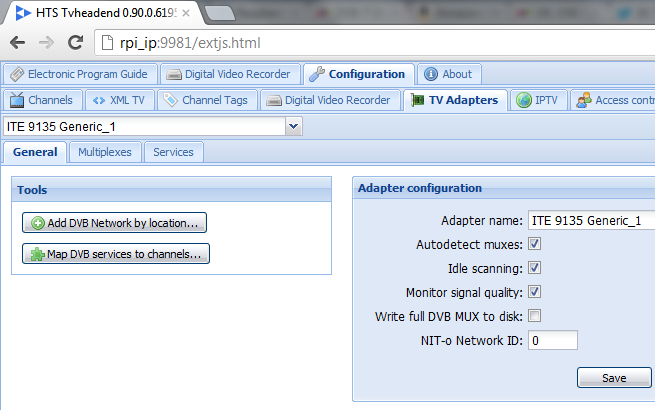
I was able to get details of my local transmitter from ukfree.tv, which I could enter manually:
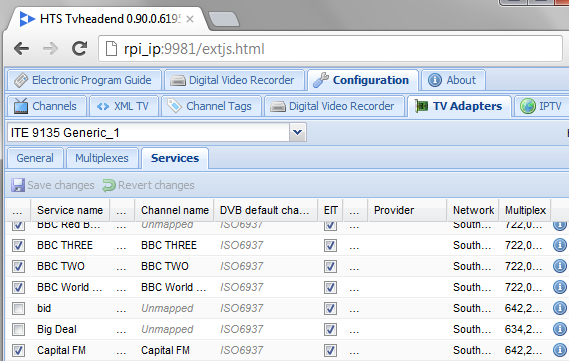
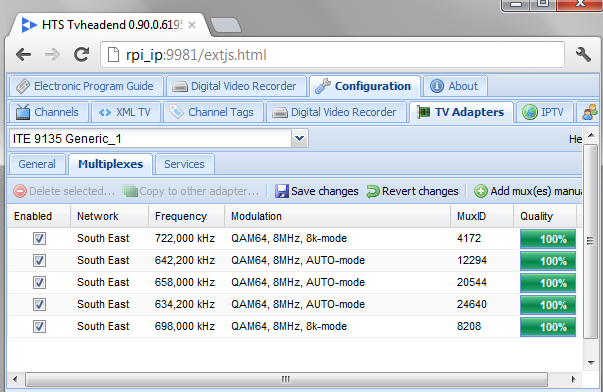 With the muxes sorted I could then see a load of channels available (and deselect those I wasn’t interested in):
 It’s then back to the general tab to hit Map DVB services to channels. That will then populate the channels tab:
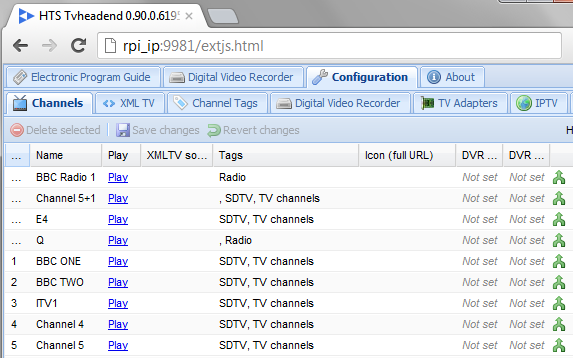 At this point it’s possible to hit Play and see live TV in your PC browser (provided that it has the VLC plugin) installed.
Recording TV
I used the Digital Video Recorder tab to configure a recording path of /storage/recordings and mounted that directory to my NAS (as an SD card won’t hold very many shows) using /storage/.config/autostart.sh:
#! /bin/sh
(sleep 30;\
mount -t nfs nas_ip:/volume1/RPi_DVR /storage/recordings \
) &
Recordings can be configured from the Electronic Programme Guide (EPG) or by setting up a regular expression to catch future programmes.
The recordings are MPEG2 streams within a .mkv container (which isn’t exactly a popular combination). These can be played on the Raspberry Pi (with OpenELEC) if you have an MPEG2 license. My main laptop had the right codecs on board to be able to play these files too, but I’ve been less fortunate with other machines that I’ve tried. I had a go at transcoding with DivX converter, but this didn’t work without an intermediate conversion to MPEG2 Transport Streams using TSMuxeR.
Live TV on OpenELEC
I’m told that it’s possible to watch TV on the RPi attached to the tuner, but I haven’t figured out how to do this myself yet (and right now I’m using a different RPi for my media player and TV receiver). To get things hooked up I added an entry to /storage/.xbmc/userdata/sources.xml in the video section:
<source>
 <name>Live TV</name>
 <path pathversion="1">htsp://10.10.10.41:9982</path>
</source>
With the MPEG2 license installed and a recent build of OpenELEC I can now watch Live digital TV.
Conclusion
For less than £12 for the hardware and an MPEG2 license it’s possible to add Digital TV viewing, recording and playback to a Raspberry Pi based media player, which seems like a bargain.
Updates
Update 1 – 22 Sep 2012 -I’ve uploaded binaries for release bundles with media_build (rather than the regular DVB drivers) and TVHeadEnd on PiChimney.
Update 2 – 29 Sep 2012 – the build process for release bundles with media_build is now automated.
Notes
[1] This adaptor on Amazon [affiliate link] looks the same as what I got.
Filed under: howto, Raspberry Pi | 136 Comments
Tags: 9135, codec, divx, dvb, DVR, it913x, license, MPEG2, openelec, PVR, transcode, tv, TVHeadEnd, USB, XBMC


 Chris Swan's Weblog